Turn your Goldcast recordings into Video Clips
Upload your Goldcast recording and get scroll-stopping short-form video clips in minutes. Each clip is trimmed, captioned, and sized for LinkedIn, YouTube Shorts, Instagram Reels, and paid social.
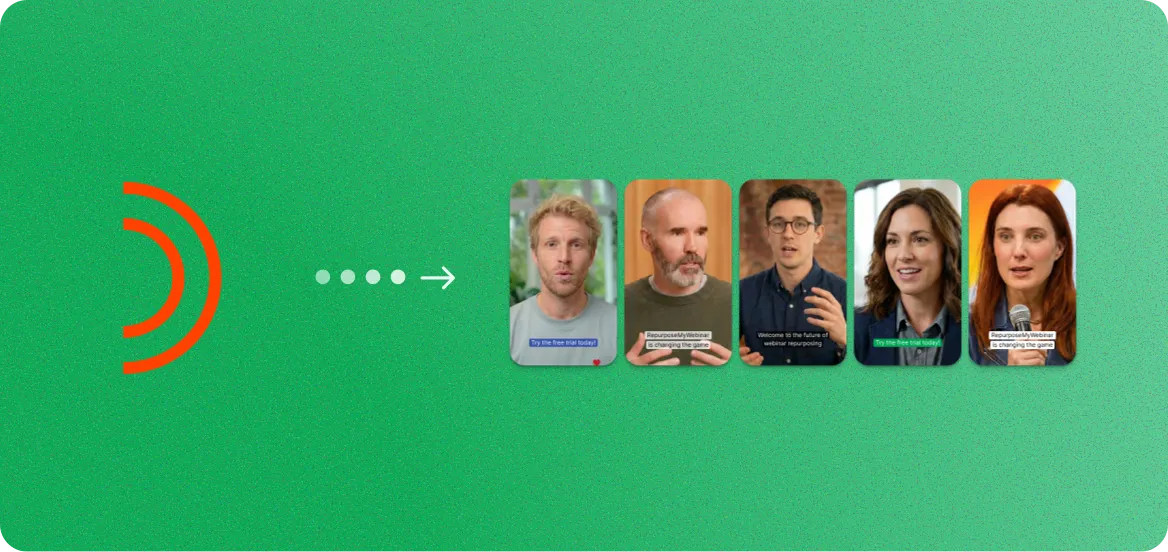

How to export your Goldcast recording
- 1
Log in to your Goldcast dashboard at app.goldcast.io.
- 2
Navigate to Events, find your completed event, and click into the event details.
- 3
Go to the Recordings tab and click Download to save the video file.
Once you have the file, upload it to RepurposeYourContent to start generating content.
3 steps. 72 hours.
A month of content.
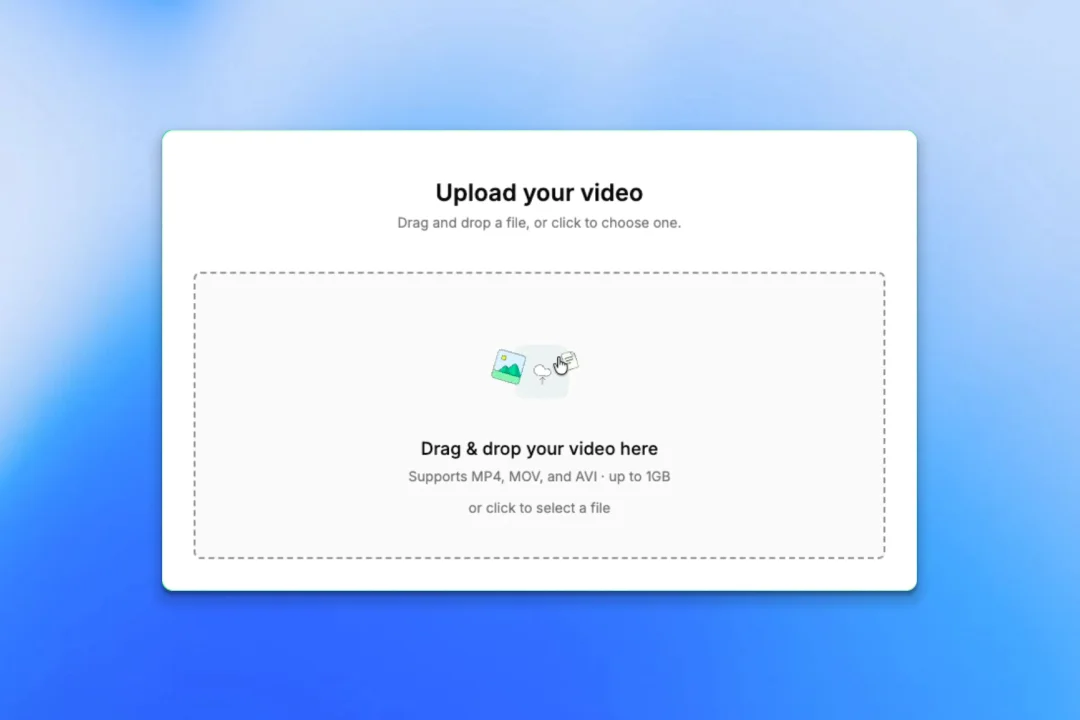
Upload your recording
- Any platform: Zoom, YouTube, Vimeo, or a file
- No editing or prep required
- About 5 minutes of your time
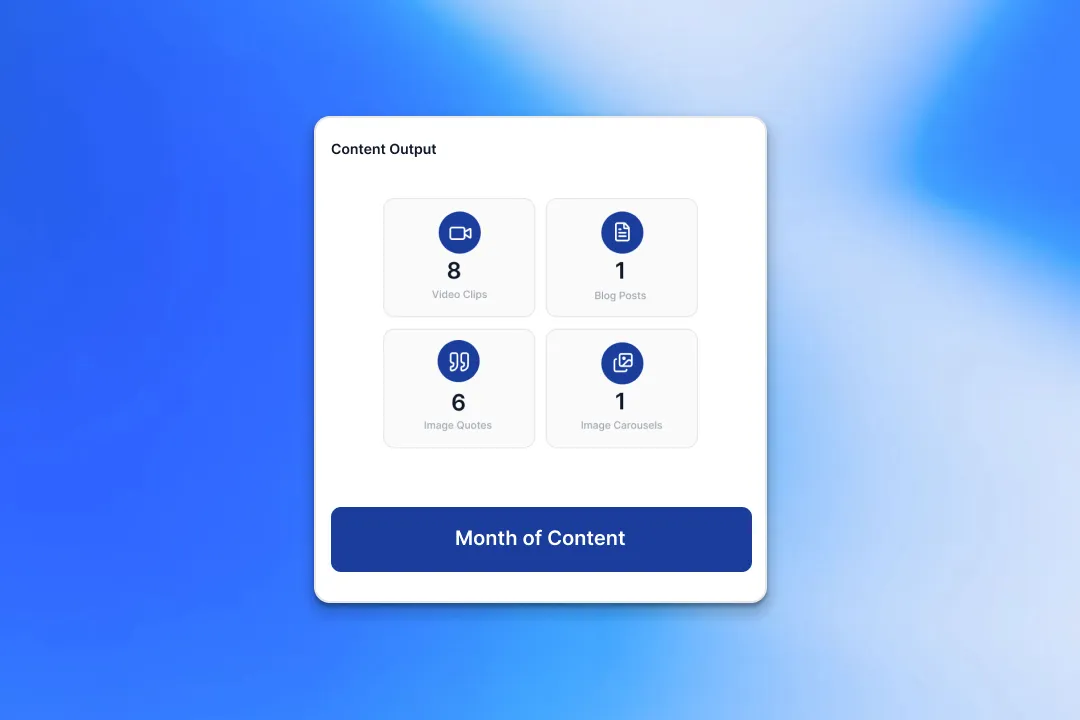
We create your content
- A month of ready-to-post content from every recording
- On-brand voice, colours, and style
- Delivered within 72 hours
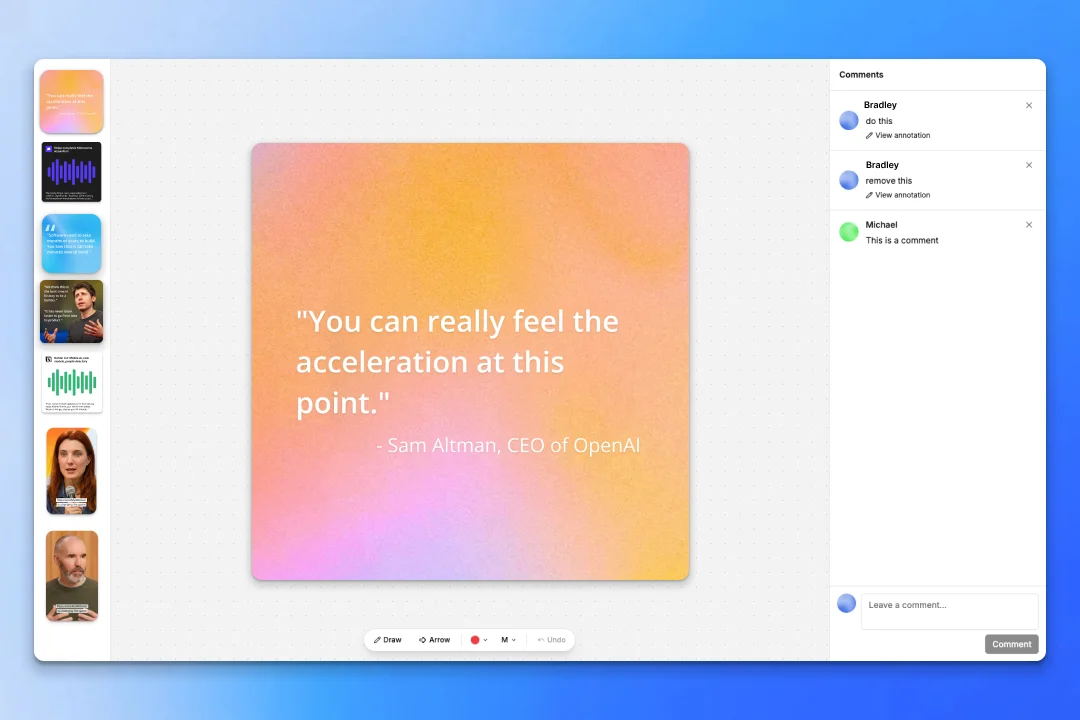
Review and approve
- Revision rounds on every delivery
- One-click approve
- Download from the dashboard
Two guarantees behind it:
- A month of content delivered to you within 72 hours.
- A revision round on every delivery until it's ready to post.
Why turn Goldcast recordings into video clips
Your Goldcast recordings are full of shareable moments. We find them, clip them, and format them automatically.
Multiple Clips from One Recording
Our AI identifies the most engaging moments in your Goldcast recording and creates multiple standalone clips. A 60-minute webinar typically yields 6-12 ready-to-post clips.
Vertical, Horizontal, and Square Formats
Every clip is exported in the aspect ratio you need. Get 9:16 for Reels and Shorts, 16:9 for YouTube and LinkedIn, or 1:1 for feeds. No manual cropping required.
Auto-Generated Captions
Each clip comes with burned-in captions that match your brand fonts and colors. Captions boost engagement by up to 80% and make your content accessible to everyone.
Not Just Clips - 8+ Content Types
While you are creating clips, also generate blog posts, image quotes, social posts, carousels, audiograms, email sequences, and podcasts from the same Goldcast recording.
What your video clips look like
Professionally trimmed clips with captions, branded overlays, and platform-perfect sizing.
LinkedIn Thought Leadership
YouTube Short
Twitter/X Clip
More ways to repurpose your Goldcast recordings
Video Clips are just the start. Turn your Goldcast recordings into 8 different content formats.
Goldcast to Video Clips
Short-form clips for LinkedIn, YouTube, and social ads.
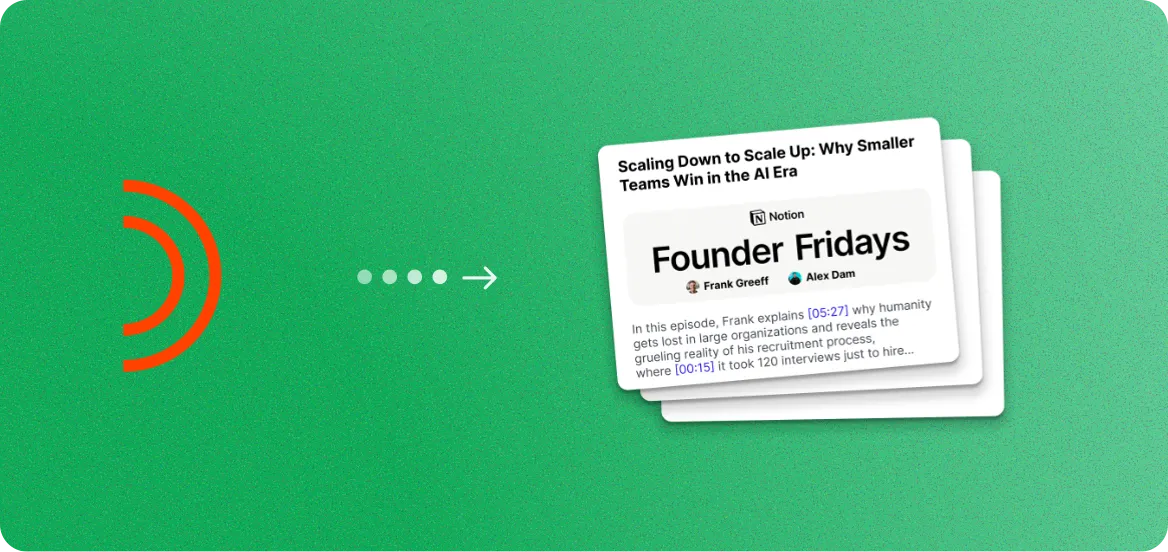
Goldcast to Blog Posts
SEO-optimized articles from your spoken expertise.
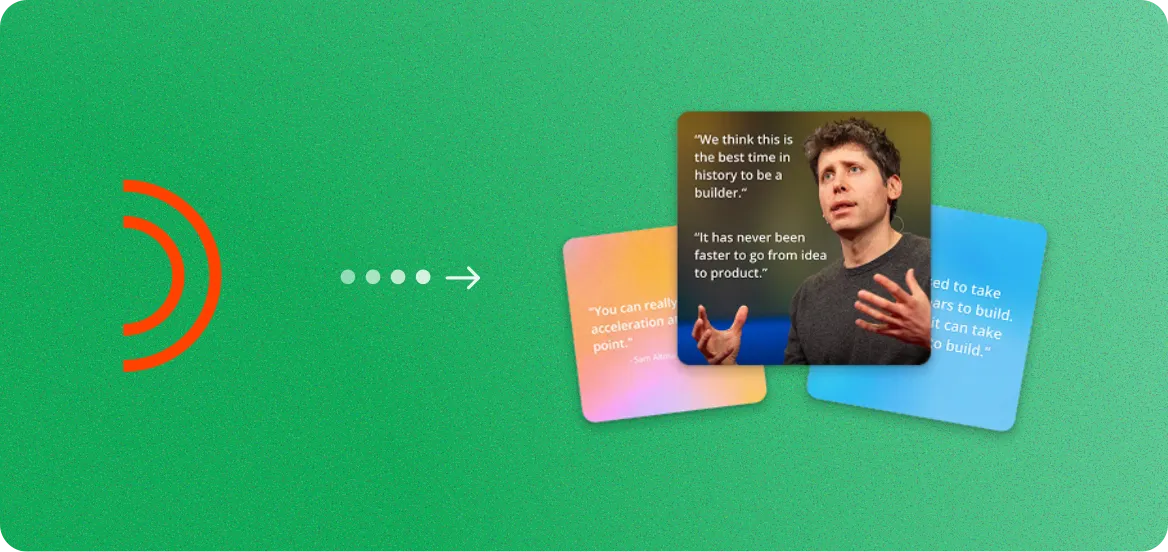
Goldcast to Image Quotes
Branded quote cards from your speakers.
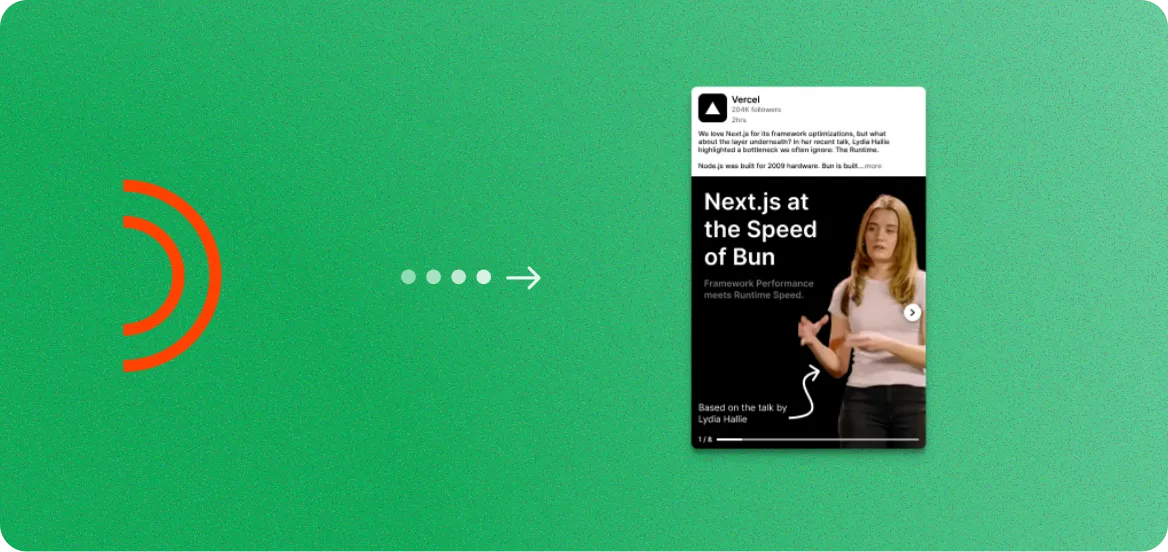
Goldcast to Image Carousels
Branded slide decks for LinkedIn and Instagram.
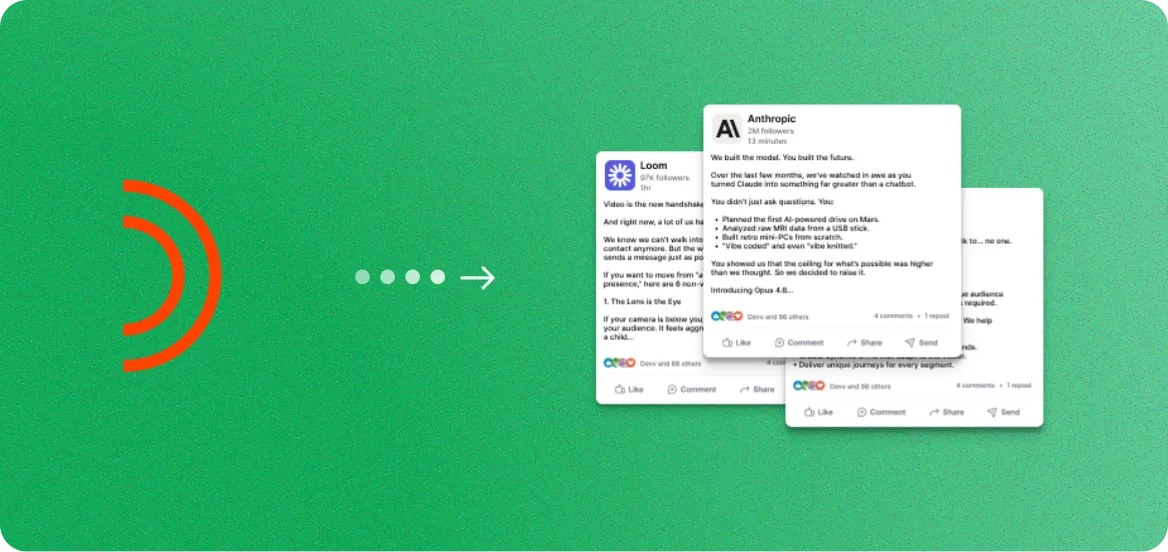
Goldcast to Social Posts
Ready-to-publish captions and threads.
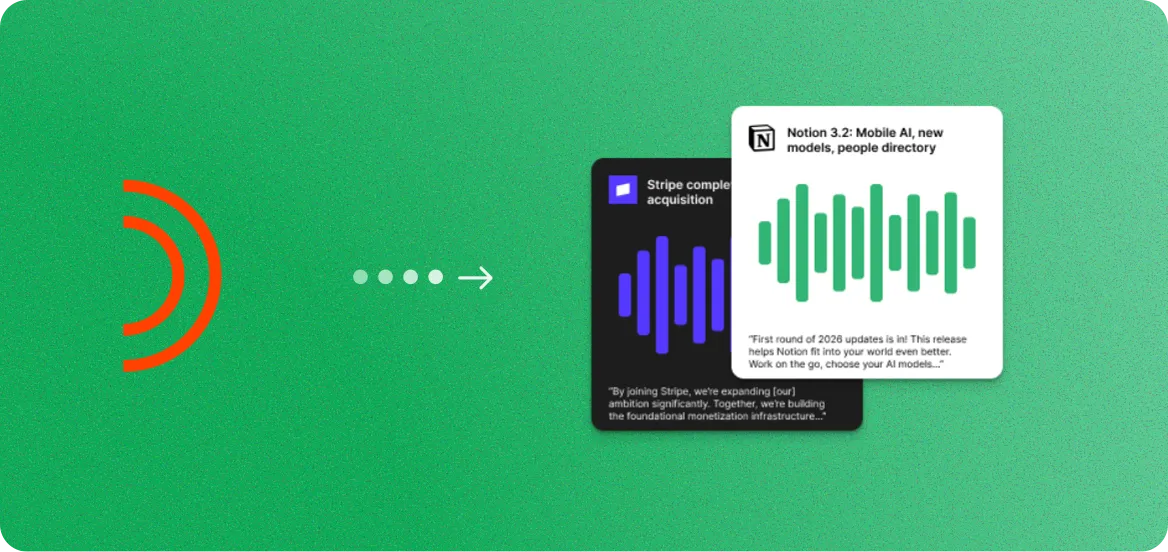
Goldcast to Audiograms
Audio snippets with animated captions.
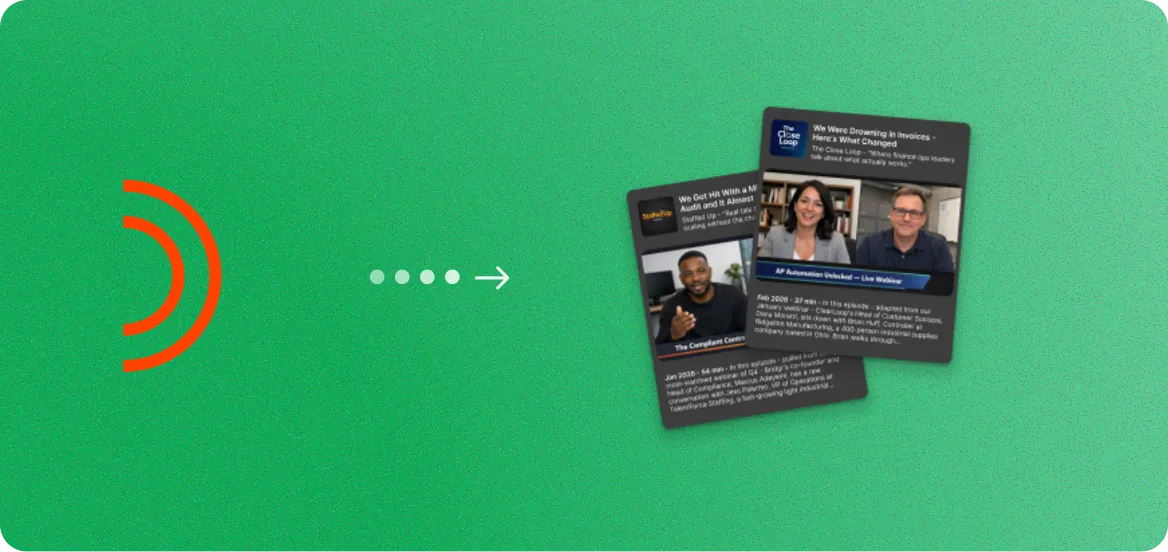
Goldcast to Podcasts
Clean audio episodes with show notes.
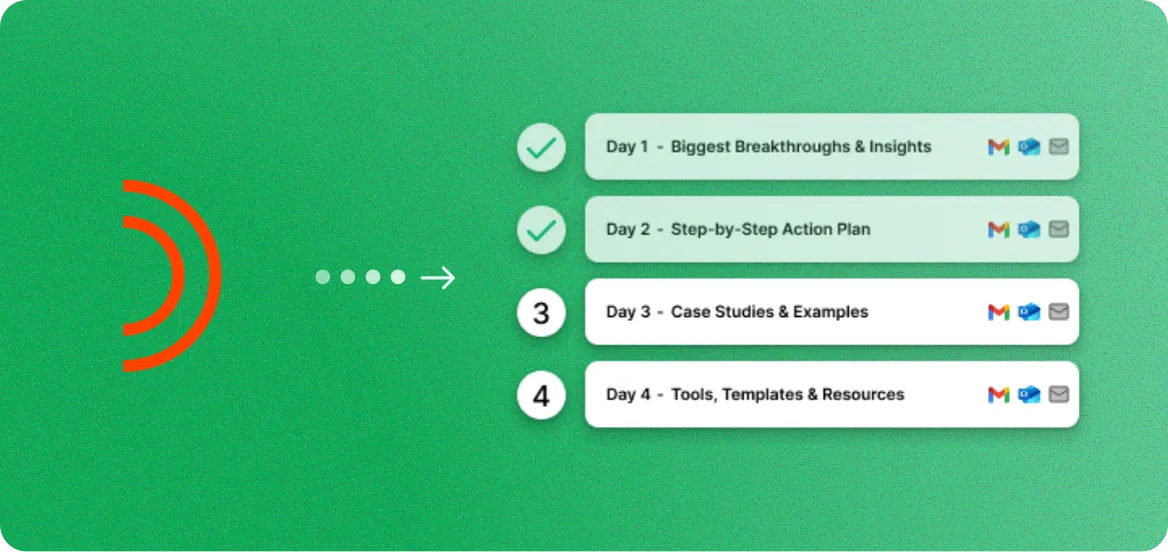
Goldcast to Email Sequences
Nurture campaigns from key insights.
Goldcast to Video Clips FAQ
Common questions about creating video clips from Goldcast recordings.
Yes. You can upload your Goldcast recording file (MP4) directly, or paste a recording link. RepurposeYourContent supports all standard video formats including MP4, MOV, and WebM, so any file exported from Goldcast will work.
You can generate between 1 and 20 video clips per recording. A typical 45-60 minute Goldcast webinar yields 6-12 high-quality clips. Panel discussions and multi-topic sessions often produce even more.
Clips range from 15 seconds to 3 minutes, depending on the moment. Most clips fall in the 30-90 second range, which is the sweet spot for social media engagement on LinkedIn, YouTube Shorts, Instagram Reels, and Twitter/X.
No. RepurposeYourContent creates 8+ content formats from a single Goldcast recording, including blog posts, image quotes, image carousels, audiograms, social posts, podcast episodes, and email sequences. Video clips are just one of the many options.
No. You just need the recording file from your Goldcast session. As long as you can download or access the recording, you can upload it to RepurposeYourContent and generate video clips.
Most recordings are processed in under five minutes. Our AI analyzes the full recording, identifies key moments, generates captions, and creates clips automatically. A 60-minute recording typically takes 3-4 minutes from upload to download.
Yes. You can adjust clip start and end times, edit captions, change brand colors and fonts, and select which clips to keep. You have full control before exporting.
Clips are exported in 9:16 (vertical for Reels, Shorts, TikTok), 16:9 (landscape for YouTube, LinkedIn), and 1:1 (square for feeds). All clips export as MP4 files with H.264 encoding for maximum compatibility.
Yes. Every clip comes with auto-generated captions that are synced to the audio. Captions use your brand fonts and colors, and you can edit the text before downloading. You can also choose to export clips without captions.
Absolutely. RepurposeYourContent detects individual speakers and can create clips featuring specific speakers or moments. Panel discussions, interviews, and multi-presenter webinars all work perfectly.
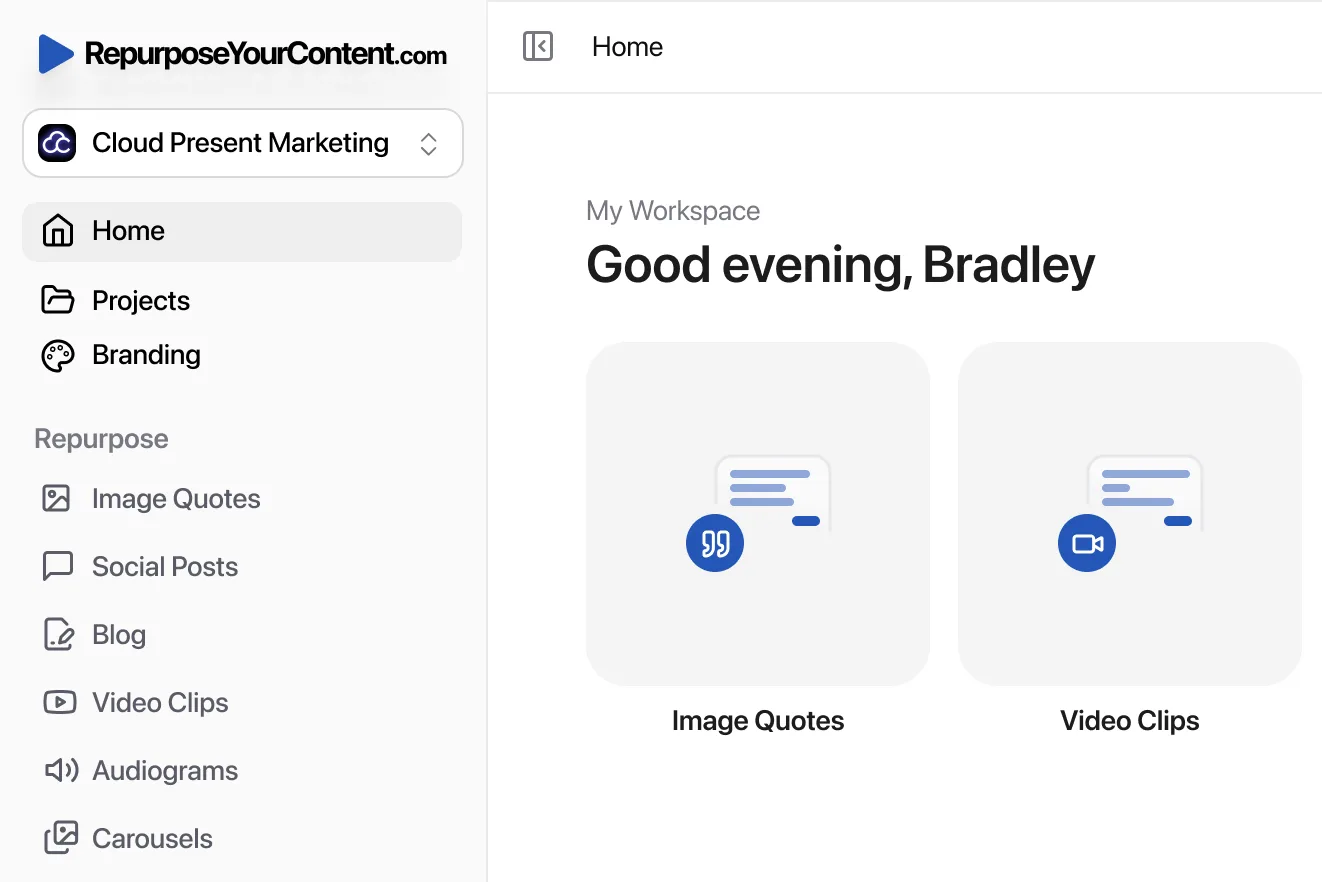
Get more value from every recording
You already spent the money. You already did the work.
Now get a
month of ready-to-post content from it.