10 Best AI Video Clipping Tools 2026
Discover the best AI video clipping tools 2026. Compare pricing, features & use-cases to automate webinar-to-marketing workflows.

Webinars still drive pipeline, but the post-event workload is where B2B teams lose momentum. One recording has to become short clips, captioned videos, blog content, email follow-up, social posts, and sales enablement assets. If that process still depends on manual editing, content production slows down right when buyer interest is highest.
This standard guides the evaluation of AI clipping tools in 2026. Speed matters. So do output quality, pricing, review effort, and how many usable formats you get from one webinar.
This list focuses on tools that fit a webinar-to-marketing workflow, not just viral clip generation. Some are strong for fast social snippets. Some are full editors with AI clipping added in. A smaller group can handle the wider job B2B marketers have, which means turning one session into publishable assets across channels. RepurposeYourContent stands out here because it extends beyond clipping into broader repurposing.
UK teams should also screen for data handling before they buy. Webinar recordings can include attendee names, chat logs, customer questions, and other sensitive context. That makes processing location, retention policies, and data processing terms part of the buying decision, not a legal footnote.
If you want a practical benchmark, compare each tool against the manual workflow in this guide to extracting video clips from a webinar. If YouTube is part of your distribution mix, this walkthrough on how to clip a YouTube video is also useful. The reviews below focus on honest trade-offs, pricing tiers, and which platforms help a B2B team ship more from every webinar.
1. RepurposeYourContent

If your job is to turn webinars into pipeline content, this is the strongest option on the list.
RepurposeYourContent isn’t just another clipper. It’s built for B2B teams that need campaign assets fast. Upload a webinar or paste a link, choose the formats you want, set output volume, and generate. Most webinars process in about five minutes, and plans start at $99/month with a free Basic plan and a 7-day free trial on paid plans.
The core difference is simple. You don’t stop at short clips.
What makes it different
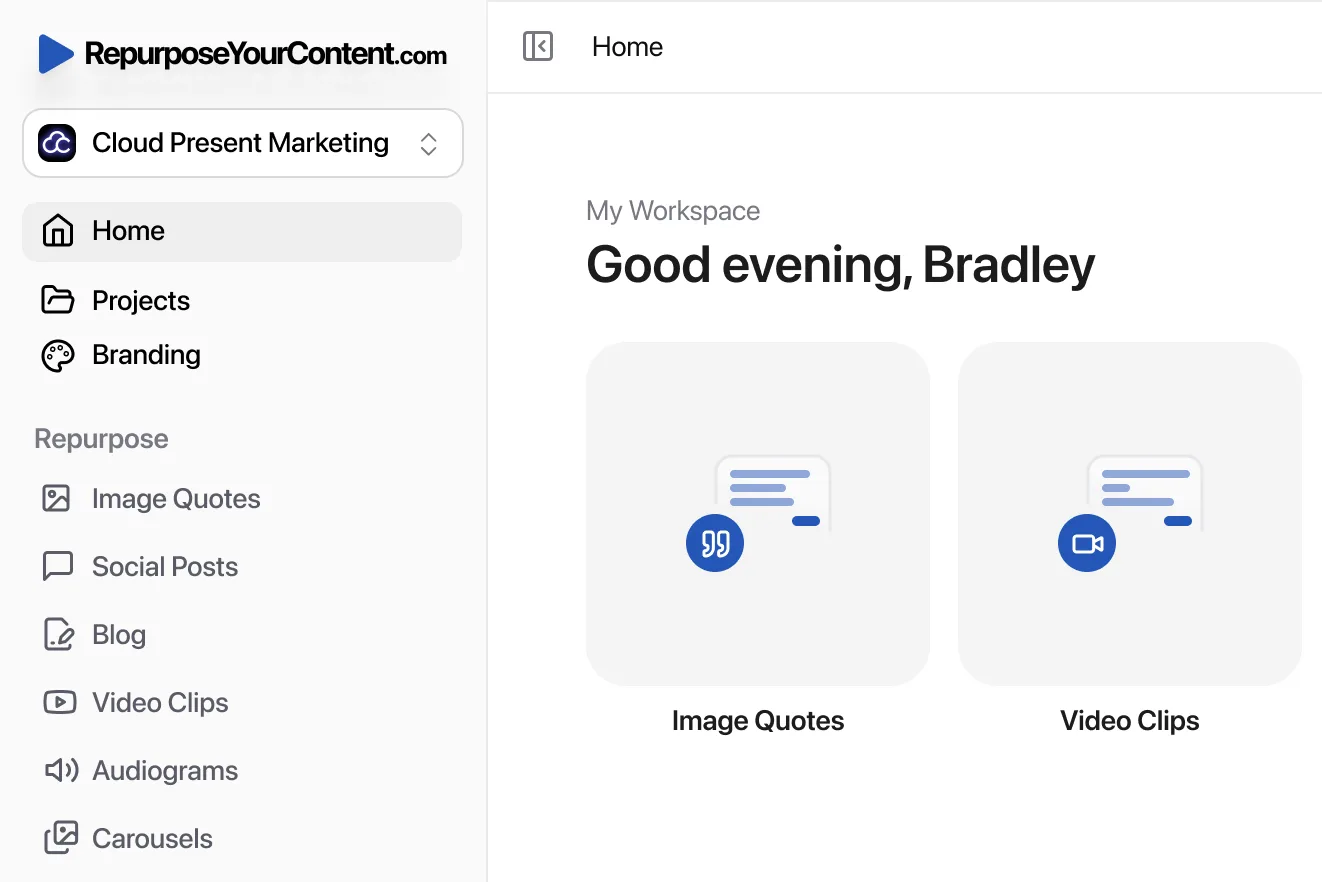
RepurposeYourContent creates clips, but it also turns the same webinar into blog posts, social posts, audiograms, image quotes, newsletters, LinkedIn carousels, and timestamps. That matters when your team isn’t short on ideas. It’s short on time.
It also works with common webinar and video sources, including Zoom, YouTube, Vimeo, Goldcast, and ON24. That flexibility matters if your stack changes across clients or teams.
For teams comparing workflows, this guide to extracting video clips from a webinar shows the manual path versus an automated one. If you also publish recorded sessions publicly, this walkthrough on how to clip a YouTube video is a useful companion process.
Practical rule: If you need clips plus written and image assets from the same webinar, don’t buy a clipper and then add three more tools.
How RepurposeYourContent helps
This is its key strength.
You upload one webinar. The platform identifies highlights and key takeaways. Then it produces multiple ready-to-review outputs in one pass:
- Video clips: Social-ready highlights for LinkedIn and other short-form channels.
- Blog posts: SEO-ready drafts built from the webinar’s spoken insights.
- Social posts: Platform-ready copy you can edit and publish quickly.
- Audiograms: Useful for audio-first moments and podcast promotion.
- Image quotes: Branded quote cards from speaker soundbites.
- Newsletters: Follow-up email content from the same source.
- LinkedIn carousels: Slide-based repackaging for thought leadership.
- Timestamps: Fast navigation for long-form replay pages.
That’s the right workflow for B2B webinar teams. Not clip first, then write later, then design later.
Real workflow example
Step 1. Upload your webinar file or paste a replay link.
Step 2. Select clips, blog posts, social posts, audiograms, image quotes, newsletters, carousels, and timestamps.
Step 3. Set how many pieces you want.
Step 4. Apply your brand kit.
Step 5. Review, edit lightly, then download and publish.
RepurposeYourContent is the best fit for demand gen teams, content marketers, agencies, and webinar managers who need output volume without adding headcount. Its trade-off is clear. If your team creates very high asset volume every month, a credit-based system needs planning.
Still, for webinar-first B2B marketing, this is the best tool in the list.
Website: RepurposeYourContent
2. Opus Clip

Opus Clip wins on speed. If your team needs short-form clips from a webinar by the end of the day, it is one of the fastest tools here to get from upload to usable draft.
That focus is also the limit.
Opus Clip is built for highlight extraction, reframing, captions, and packaging clips for social distribution. It does that well. It does not try to turn a webinar into blog posts, email follow-up, carousels, or a broader campaign asset set. For B2B marketers, that makes it a strong specialist tool, not a full webinar repurposing system.
Where it fits best
Choose Opus Clip if your workflow already exists outside the clipping tool. A content marketer, freelancer, or agency editor can take the clips from Opus and handle the rest in other tools.
Its "virality" scoring is the main differentiator. That helps when you want fast first-pass selections from a long webinar and do not want to scrub the full recording manually. The recommendations are often good enough to cut review time, especially for speaker-led sessions, interviews, and panel discussions.
What you get
- AI highlight detection: Pulls likely short-form moments from long recordings.
- Auto reframing: Converts webinar footage into vertical and square formats with less manual work.
- Caption styling: Produces readable social subtitles with cleaner presentation than many low-cost tools.
- Batch clip output: Useful when you need several options from one source video.
- API access: A practical option for teams building automated production workflows.
If you are comparing specialist clippers against broader editing platforms, this guide to AI video editing tools for marketers gives useful context.
Opus Clip is a good choice when the job is simple. Find strong moments, package them quickly, publish them fast.
The trade-off is pricing and scope. Longer webinars can burn through credits quickly, and better automation or output controls usually sit in higher tiers. That matters for webinar-heavy teams running frequent demos, customer events, or monthly thought leadership sessions.
It also stops short of multi-format repurposing. You get clips. You do not get the wider marketing outputs many B2B teams now expect from a 2026 webinar workflow.
Website: Opus Clip
3. Klap

Klap is built for volume.
If your team’s main goal is to turn long video into a steady stream of Shorts, Reels, and TikToks, Klap is one of the cleaner options. The experience feels template-led and predictable, which many busy teams prefer.
Why marketers pick it
Klap focuses on automatic clip creation, branded subtitles, and aspect-ratio resizing. It’s not trying to be a full non-linear editor. That’s a good thing if you don’t want one.
Its outputs are designed for short-form social pacing. For webinar teams, that means you can turn speaker-led recordings into vertical clips without spending time on manual resizing.
- Auto-clipping: Fast first drafts from long recordings.
- Resizing: Handles 9:16, 1:1, and 16:9 outputs.
- Branding options: Better consistency across clip batches.
- Translation and dubbing: Helpful for broader reach.
- API support: Useful if you automate production.
The trade-off
Klap is narrower than all-in-one editors. That gives it focus, but it also means fewer deep editing options after generation.
If your team needs lots of clips with a consistent look each month, that’s fine. If you need transcript editing, long-form cleanup, or written asset generation, you’ll hit limits quickly.
Output quality is generally solid for social clips. The main thing to watch is plan caps on uploads and source length. That matters if you process long webinars often.
Klap is a good operational choice for teams batching short-form content. It’s less compelling for teams that treat webinars as a central B2B content engine.
Website: Klap
4. Vizard AI

Vizard AI makes sense for B2B teams that want one system for clipping, review, and distribution. It does more than pull highlights from a webinar. It helps teams move approved clips out to channels without adding another handoff.
That matters if your webinar program feeds social every week. A tool can create decent clips and still slow your team down if approvals, branding, and publishing live somewhere else.
Where Vizard fits
Vizard is stronger on workflow than pure clip generators. If your social manager, content marketer, and demand gen lead all touch the same webinar output, that matters.
Its value shows up in the operating model:
- AI clip generation: Fast first cuts from webinars, interviews, and podcast-style recordings.
- Team workspace features: Easier review and collaboration than single-user tools.
- Brand controls and templates: Better for recurring series that need consistent visual output.
- Direct publishing options: Useful if your team posts quickly after an event.
- API access: Worth paying for if webinar repurposing is part of a larger content pipeline.
The trade-off
Vizard is not the strongest choice for teams that want broad post-webinar content creation across formats. You can get clips out quickly, but you will still need other tools for blog drafts, email copy, carousels, or fuller campaign asset packs.
Pricing also needs a close look. Minutes-based plans can get expensive fast if you process long webinars every month, especially if you create multiple versions per event for LinkedIn, YouTube, and vertical social.
That makes Vizard a better fit for teams optimizing production flow than teams trying to replace more of their content stack.
My take
Choose Vizard if your bottleneck is coordination. It is a practical option for marketing teams that care about approvals, repeatable branding, and getting clips published without friction.
Skip it if your main goal is broader webinar-to-marketing repurposing across formats. In that case, compare it against tools that go beyond clipping and publishing. See VEED (Clips feature) in comparison with other platforms.
Website: Vizard AI
5. VEED

Teams waste hours fixing AI clips that are close, but not publishable. VEED earns its place because it shortens that cleanup step better than clip-only tools.
VEED is the right pick for marketers who want AI to find highlights, then want a real browser editor to finish the job fast. Its Clips feature identifies moments, reframes speakers, and generates social-ready cuts. From there, your team can tighten captions, remove awkward starts, adjust pacing, and export without moving into another platform.
That matters in webinar-to-marketing workflows. A webinar rarely turns into just one short clip. You usually need multiple cutdowns, different aspect ratios, subtitle-first versions for LinkedIn, and cleaner edits for paid or owned channels. VEED handles that broader production layer better than tools built only for clipping.
Where VEED fits best
Choose VEED if your team already knows the AI draft will need review.
It works well for B2B marketers turning webinars into short-form video on a deadline, especially when the same session needs several outputs. If your team follows a repeatable process for turning long-form video into short clips, VEED fits the editing and packaging stages well.
What you get
- AI Clips: Fast first-pass highlight extraction from long recordings.
- Browser editor: Better post-clip control than lightweight clippers.
- Auto subtitles: Useful for silent autoplay and fast social turnaround.
- Speaker framing and resizing: Helpful when one webinar needs vertical, square, and horizontal outputs.
- Multi-format finishing: Stronger for teams producing clips plus polished video assets from the same source.
The trade-off
VEED is not the best choice if your goal is full webinar repurposing across formats like blog drafts, email copy, carousel posts, and campaign assets. It is still a video-first tool. You get more editing control, but not a broader content engine.
Pricing also deserves scrutiny. Some useful AI clipping features are gated on higher tiers, so the value improves only if your team will use the editor heavily after the AI pass. For teams processing long webinars every month, that can be justified. For teams that want near-automatic output with minimal human touch, it can feel like extra work.
My take
Pick VEED if your bottleneck is polishing clips, not generating ideas. It is one of the better options for webinar teams that need AI help, manual control, and multiple output formats in one place.
Skip it if you want the platform to do more of the downstream marketing repurposing for you. If you are weighing that trade-off, see VEED (Clips feature) in comparison with other platforms.
Website: VEED
6. Kapwing

Kapwing is the budgeting-friendly choice for teams that want visibility into AI usage.
Its Repurpose Studio and smart editing tools sit inside a broader browser editor. That means you can generate clips, cut silences, add subtitles, and finish the job without switching platforms.
Why Kapwing works for teams
Kapwing is built for collaboration. Brand kits, templates, and shared editing help when multiple people touch the same webinar outputs.
If your team needs to repurpose long-form sessions consistently, this guide on repurposing long-form video into short clips maps the broader process that Kapwing supports fairly well.
Its strengths are practical:
- Repurpose Studio: Fast route from long-form to short-form.
- Smart Cut: Useful for webinar cleanup.
- Auto subtitles and translations: Strong for social distribution.
- 4K export on paid plans: Helpful if quality matters downstream.
- Transparent credits: Easier to forecast than vague “fair use” models.
Where it falls short
Kapwing still feels like a general editor first. That’s good for flexibility, but it means the webinar-to-clips workflow isn’t as specialised as dedicated clippers.
Browser performance can also drag on very large files. If your webinars are long and your team works in-browser all day, that friction adds up.
Output quality is good, especially after light human editing. Platform support is broad because the editor is broad. Pricing is relatively transparent, which many teams will appreciate.
Kapwing is a smart middle-ground tool. It’s stronger than simple clippers for editing. It’s weaker than webinar-first systems for multi-format repurposing.
Website: Kapwing
7. Riverside Magic Clips

Riverside makes the most sense when you already record inside Riverside.
That’s the key buying rule. Don’t adopt it only for clipping unless you also want the recording stack.
The value is the handoff
Magic Clips works right after recording. That’s useful because the highest-friction part of webinar repurposing is often moving files between tools, waiting for uploads, then starting the clipping process from scratch.
Riverside shortens that handoff. Record, transcribe, create clips, and edit through text in one environment.
What stands out:
- One-click clip creation after recording
- Text-based editing
- Transcripts and AI show notes
- High-quality upstream recording
- Good fit for webinar hosts and podcasters
If your recording workflow already lives in Riverside, Magic Clips is one of the easiest upgrades you can make.
The limitation is obvious. If you don’t record there, the value drops. You can get stronger social design features from dedicated clipping tools.
Output quality benefits from the clean source capture. That matters. Better source in means better clips out. Platform support is strongest for teams using Riverside as the front door of their media workflow.
For webinar marketers, I’d only place Riverside near the top if recording quality and immediate post-recording turnaround are top priorities.
Website: Riverside Magic Clips
8. Descript

Descript fits teams that turn webinars into more than social snippets.
If your workflow includes trimming the recording, fixing wording, pulling quote clips, resizing for different channels, and handing approved assets to marketing, Descript is one of the strongest options in this list. It is an editor first and a clip generator second. That is exactly why some B2B teams should choose it.
Where Descript stands out
Create Clips provides a starting point, but maximum value comes after the AI pass. You can refine clips by editing the transcript, clean up filler, change layouts, and produce several formats from the same webinar segment without jumping into a separate editor.
That matters for webinar-to-marketing workflows, where the clip is rarely the final deliverable.
Descript is a strong pick if you need:
- Transcript-first editing: Fast for marketing teams that review messaging line by line
- AI clip suggestions: Useful for getting initial selects from long webinar recordings
- Multiple output formats: Better suited to portrait, square, and standard video exports than simpler clip-only tools
- Brand controls: Helpful for keeping customer-facing assets consistent
- Post-clip editing depth: Stronger than tools built only for quick highlight extraction
If your team is still deciding whether a clipper alone is enough, this guide to choosing a webinar clip generator for marketing workflows will help.
The honest trade-off
Descript takes longer to learn than pure clipping tools. That is the cost of getting more control. Teams that want instant outputs with minimal editing will move faster in Opus Clip, Klap, or Quso.ai.
Pricing also needs a close look because AI features and editing usage can affect cost as volume grows. For webinar marketers producing one polished campaign from each event, that trade-off is usually fair. For teams pushing high-volume shorts every week, it can become expensive and slower than a social-first tool.
My recommendation is simple. Choose Descript if your webinar content needs editing, repackaging, and multi-format output after the initial clip is generated. Skip it if your only goal is to publish quick social cuts with almost no human review.
Website: Descript
9. Quso.ai
Quso.ai is social-first and speed-first.
If you want a tool that feels designed for producing many shorts quickly, it’s a credible option. The branding, templates, and scheduling lean toward social media managers rather than webinar strategists.
Best fit
Quso.ai works best when your team’s main KPI is output volume across short-form channels. It’s less compelling when your webinar programme feeds a wider B2B content machine.
Its offer is straightforward:
- Auto-clipping from long video
- Social-first templates
- Brand kit support
- Scheduling and management
- Multi-lingual support
If your current process starts with webinar highlights, then branches into a bigger campaign, this webinar clip generator guide is useful context for deciding whether a dedicated clipper is enough.
Recommendation
Use Quso.ai if your team wants rapid social clip batches with minimal friction. Don’t use it as your main webinar repurposing hub unless video snippets are the only thing you need.
The main caution is commercial. Rebrands often come with plan changes. Verify current pricing and feature names before buying.
Output quality is generally tuned for social-native posting. Platform support is broad enough for most social teams. It’s a good tool. It’s just narrow.
Website: Quso.ai
10. Wisecut

Wisecut is the rough-cut specialist.
It’s strongest when your webinar footage needs cleanup before clipping. Silence removal, jump cuts, background music handling, and pacing adjustments save time before you create social-ready outputs.
Where it earns its place
Not every webinar recording is publishable out of the box. Speakers pause. Moderators ramble. Q&A sections drift. Wisecut helps tidy that fast.
Its core strengths:
- Auto silence removal
- Intelligent pacing
- Captions
- Music ducking
- Scene detection
- Social posting and scheduling
This makes it useful for teams that want to reduce edit time on talking-head content. It’s not the most design-rich clipper in the list, but it can speed up the ugly part of the workflow.
My take
Wisecut is best used as an efficiency tool. It’s less useful as a full clipping and repurposing platform.
If your team spends too long cleaning webinar recordings before creating clips, Wisecut can save real effort. If you need polished social packaging and broad output variety, other tools are stronger.
Output quality depends heavily on source quality, but the automated cleanup is helpful. Pricing is tied to minute quotas, which keeps budgeting understandable. Watch project expiry limits on some plans if your team revisits assets later.
Website: Wisecut
2026 Top 10 AI Video Clipping Tools Comparison
| Product | Core formats / capabilities | Speed & ease of use | Target audience | Unique selling point | Pricing model |
|---|---|---|---|---|---|
| RepurposeYourContent | 8 formats: clips, blogs, social, emails, carousels, audiograms, podcasts, quotes | ~5 minutes from upload to ready assets; one-click generation | B2B marketing, demand gen, agencies, content teams | Webinar-first workflow, platform-agnostic ingestion, auto-applies brand kit across all outputs | Credit-based; starts ~$99/mo, Free Basic + 7-day trial, enterprise options |
| Opus Clip | Auto highlight detection, virality scoring, dynamic reframing, styled subtitles | Fast auto-clipping; credit per minute | Social teams, API-driven workflows | Virality scoring + dynamic reframing for multi-aspect outputs | Credit-based per-minute pricing |
| Klap | Template-driven shorts, branded subtitles, multi-format resizing, API | Batch-friendly; predictable monthly limits | Creators and teams producing many shorts | High monthly clip allowances and consistent templates | Tiered plans with upload/length caps |
| Vizard AI | Auto-clips with templates, team workspaces, direct publishing, API | Team-oriented workflow with platform publishing | Businesses needing team collaboration & direct publish | Built-in publish pipeline + seat/usage management | Minutes-based billing; API on paid plans |
| VEED (Clips feature) | AI “Create Clips”, auto-subtitles (100+ langs), style presets, manual editor | AI pass + full manual editing; simple onboarding | Editors and teams who want post-AI refinements | Mature browser editor for deep manual tweaks after AI | Plan limits; one-time Clips try on Free/Lite |
| Kapwing (Repurpose Studio) | Repurpose Studio auto-clipping, Smart Cut, subtitles, brand kit | Collaborative editor; transparent per-tool credits | Teams needing editing + repurposing in one tool | Clear AI credit accounting + strong general editor | Monthly AI credit model; paid tiers |
| Riverside Magic Clips | One-click clips after recording, text editor, multi-track 4K recording | Instant clips at recording time | Podcasters and hosts who record on Riverside | Tight record-to-clip workflow with high-quality sources | Feature available on plans; Free plan access for testing |
| Descript (Create clips) | Transcript-first clips, layout packs, brand kits, full NLE editing | Deep editing capabilities; steeper learning curve | Teams needing transcripts + polished editing | Transcript-driven workflow with powerful edit tools | Plans with AI credits; tiered pricing |
| Quso.ai (vidyo.ai) | Auto-clips, social-first templates, brand kit, scheduling | Streamlined, quick batch creation | Creators and social teams focused on shorts | Social-first UX with scheduling & templates | Tiered plans; verify current post-rebrand pricing |
| Wisecut | Auto silence removal, intelligent pacing, captions, music ducking, Social Hub | Very fast rough cuts for talking-head content | Teams fast-tracking long-form edits before final clipping | Smart silence/jump-cut logic that speeds edits | Clear monthly minute quotas; HD/4K export options |
Ready to Automate Your Webinar Content?
Webinar teams do not have a clipping problem. They have an output problem.
A single event now needs to feed short clips, LinkedIn posts, follow-up email, blog coverage, quote graphics, carousel assets, and often audio content too. That is the standard 2026 webinar-to-marketing workflow. If your tool only finds highlights, your team still has to build the rest by hand.
The right buying question is simple. Which product gets your webinar into publishable assets with the fewest extra steps?
For clip-only use cases, the split is clear. Opus Clip is a strong pick for fast highlight extraction. Klap fits high-volume social batches. Vizard AI is better for teams that need approvals and publishing controls. VEED and Kapwing make more sense if you want clipping plus editing in one tool. Riverside Magic Clips is strongest if you already record there. Descript works well for transcript-led editing. Quso.ai is built for social distribution. Wisecut is useful when rough-cut cleanup is slowing production.
That still leaves the main B2B webinar gap.
Short clips do not cover post-event marketing. Your team still needs written follow-up, repackaged social assets, and multiple formats for different channels. Buying a clipper often means adding more tools, more exports, and more handoffs.
RepurposeYourContent stands out because it handles the webinar as a campaign source, not just a video file. You can turn one recording into clips, blog posts, social posts, audiograms, image quotes, newsletters, LinkedIn carousels, and timestamps from a single process. That matters if your webinar program supports demand generation, not just social reach.
This section of the market is worth separating clearly. Some products are excellent at finding moments. Fewer are built for webinar-to-marketing production across formats, teams, and follow-up channels. If you care about multi-format output, the comparison changes fast.
Check operations before you commit. If your team works with customer-facing webinar recordings, review processing standards, approvals, and governance alongside pricing and output quality. Fast production is useful. Clean process is what keeps it usable at scale.
My recommendation is simple.
Choose a specialist clipper if your workflow ends with short-form video.
Choose RepurposeYourContent if your webinar needs to feed a full month of marketing assets across video, written content, and channel-specific formats.
That is the better fit for many B2B marketing teams. The hard part is rarely publishing one clip. The hard part is turning one strong webinar into enough on-brand assets to support follow-up, nurture, LinkedIn distribution, and SEO without adding hours of manual work.
Tags: