How to Create LinkedIn Carousels That Actually Work
Learn how to create LinkedIn carousels that get seen. This guide covers slide structure, design tips, and repurposing webinars for B2B marketers.

Your text-only LinkedIn posts are getting ignored. You spend hours writing, but your content disappears in the feed. This is a common problem for busy B2B marketers.
The fix is simple: LinkedIn document posts, also known as carousels. These posts get 3-5x the engagement of a standard text post. I will show you how to create LinkedIn carousels that drive results.
Why Text-Only Posts Fail on LinkedIn

A wall of text is easy to scroll past. Your audience is time-poor. They scan for quick value, not essays. The visual, swipeable format of a carousel gives you an immediate advantage.
Swiping through slides feels more engaging than reading dense text. Each swipe keeps users on your post longer. This signals to the LinkedIn algorithm that your content is valuable. This "dwell time" is rewarded with more reach.
The Data Proves It
The numbers are clear. In the UK, LinkedIn has 47.6 million users, which is 81.8% of all UK adults.
On this network, PDF carousels are the best format for engagement. They have a 6.10% engagement rate—the highest of any post type. For B2B teams, this is a huge opportunity. Carousels even outperform video (at 5.60%) because they let people consume information at their own speed.
This format breaks down complex topics into small, digestible chunks. You can walk your audience through a story, one slide at a time. It feels like a helpful presentation, not a sales pitch.
A carousel post turns a monologue into a dialogue. It invites interaction. Your audience becomes part of the story. This shift in format is why they perform so well.
Learning how to create LinkedIn carousels aligns your content with user behavior. It's the best way to get your expertise seen by the right professionals. This is a critical part of any effective LinkedIn content strategy for B2B teams.
The Anatomy of a High-Performing Carousel

The best carousels tell a story. They are not a random collection of tips. A great story grabs attention, presents a conflict, offers a resolution, and leaves you with a clear next step. Your carousel must do the same.
Following this structure guides your audience on a journey. Each slide builds on the last. You take them from a casual scroll to a genuine interest in your message.
Slide 1: The Hook
Your first slide is your only chance to stop the scroll. You must be bold. Use a surprising statistic, a provocative question, or a big claim.
For example: "Turn 1 webinar into 47 pieces of content." This is specific. It teases a massive benefit. It forces the reader to swipe to find out how. Your only job is to create enough intrigue to earn the next swipe.
Slide 2: The Problem
You have their attention. Now, agitate a pain point they feel every day. This slide should make them nod and think, "That's me." It shows you understand their challenges.
Try this: "Your team spends £5,000 on a webinar. After the live event, it gathers digital dust. You are left scrambling for new content ideas while sitting on a goldmine." This validates their struggle and sets up your solution.
Slides 3-7: The Solution
This is the core of your carousel. Here, you deliver the value. Over the next few slides, you lay out your solution to the problem you just highlighted.
Focus on one point per slide. Do not cram everything in. Use strong headlines, quick bullet points, and clean visuals. If you are pulling from a webinar, each key talking point gets its own slide. This is how you deliver on the promise from your hook. We have also covered how to create social media carousels from video in another guide.
The 5-Part Carousel Structure
Here’s a breakdown of how these pieces fit together to create a compelling narrative.
| Slide Type | Purpose | Content Example |
|---|---|---|
| Hook | Grab attention and stop the scroll. | "Is your content marketing secretly costing you money?" |
| Problem | Agitate a specific pain point. | "You spend hours on content that gets seen once, then disappears." |
| Solution | Present your key insights as the answer. | "Tip 1: Turn your core message into a 5-part slide deck." |
| Proof | Build trust and credibility. | "Our client saw a 320% engagement boost with this method." |
| Call to Action | Tell them exactly what to do next. | "Want the full strategy? Download our free guide (link in post)." |
This framework gives your carousel a logical flow that is easy to follow and act on.
Slide 8: Show The Proof
Your audience is intrigued but might be skeptical. This is where you bring in proof. Use a mini case study, a customer quote, or hard data.
Show, don't just tell. A concrete example like, "One client used this method to increase their LinkedIn engagement by 320% in 60 days" makes your solution feel real. It removes doubt and builds trust.
The Final Slide: The Call to Action
You have done the hard work. Do not fail at the finish line. Your last slide needs one clear call-to-action (CTA). Tell people exactly what you want them to do.
Strong examples:
- "Download the full report. Link in the post."
- "Watch the full webinar replay. Link below."
- "What's your biggest content challenge? Comment below."
Relevant hashtags are a must for reach. If you are stuck, a LinkedIn Hashtag Generator can help you find tags that get your content in front of the right people.
How to Create Your Carousel: A Practical Guide
You have your structure mapped out. Now for the practical part: building the carousel. This is my hands-on workflow, from rough idea to published post.
We will cover the technical details and design choices that make a carousel easy to create.
The best place to start is with content you already have. A webinar is a content goldmine. Each key insight or talking point can become a focused slide. This approach removes guesswork and guarantees your carousel is packed with value.
Sourcing Your Content from Webinars
Do not stare at a blank page. Pull up your webinar transcript and start highlighting. Look for impactful statements, surprising stats, or actionable steps. These are your slide topics, ready-made.
A single 60-minute webinar can contain 10-15 powerful ideas. This saves hours of brainstorming. It grounds your content in expertise you have already shared. Your goal is to repackage that core value in a fresh, skimmable format.
Design and Tools
You do not need to be a graphic designer. There are tools with templates built for this purpose.
- Canva: This is the best choice for marketers who need to move fast. It has thousands of pre-made templates you can customize with your brand colors, fonts, and logo.
- Figma: This is a more powerful tool for designers. Your design team can build a reusable, on-brand carousel template for the marketing team.
Whichever tool you use, consistency is key. Stick to the same fonts and color palette. It gives your carousel a cohesive, professional feel.
Key Takeaway: Your design should support the content, not distract from it. Prioritize readability with large fonts and high-contrast colors. Keep text brief. Aim for fewer than 25 words per slide.
Technical Specifications and Best Practices
Get this right. The numbers show carousel posts will hit 6.60% engagement rates by 2026. They will be the top-performing format on the platform. My experience shows the sweet spot is 8-12 slides.
Think mobile-first. 70% of LinkedIn activity happens on a phone. You must optimize for swiping. Short text and bold visuals are non-negotiable. LinkedIn’s visitor-to-lead conversion rate is 2.74%, almost three times higher than other social platforms.
Keep these specs in mind:
- Optimal Slides: I aim for 8-12 slides. It's long enough to tell a story but short enough to hold attention.
- File Format: Export the entire slide deck as a single PDF file. This is the file you will upload to LinkedIn.
- Post Copy: You still need a compelling introduction for the post itself. Use the first one or two sentences to hook the reader and give them a reason to start swiping.
By repurposing what you already have and sticking to these rules, you can consistently produce high-performing image carousels that grab attention.
How RepurposeYourContent Helps
Your best carousel content already exists. It is inside your webinar recordings. The most efficient way to create LinkedIn carousels is to repurpose content you have already created.
Stop brainstorming from scratch. All your key talking points, data, and insights are in your webinar. This is the foundation for every slide.
RepurposeYourContent does the heavy lifting for you. Instead of manually transcribing a video, our AI can do it automatically.
The AI analyzes your webinar recording. It extracts the most valuable insights, statistics, and quotes. These extracted points map directly to your carousel slides.
Here is how it changes your workflow:
- Timestamps: The AI identifies key moments in your webinar, creating an outline. This makes spotting topics for your carousel simple.
- Blog Posts: You get an automatically generated blog post, providing structured written content. You can lift entire sections for slide descriptions.
- Social Posts: The platform generates multiple short-form posts based on the webinar's core ideas.
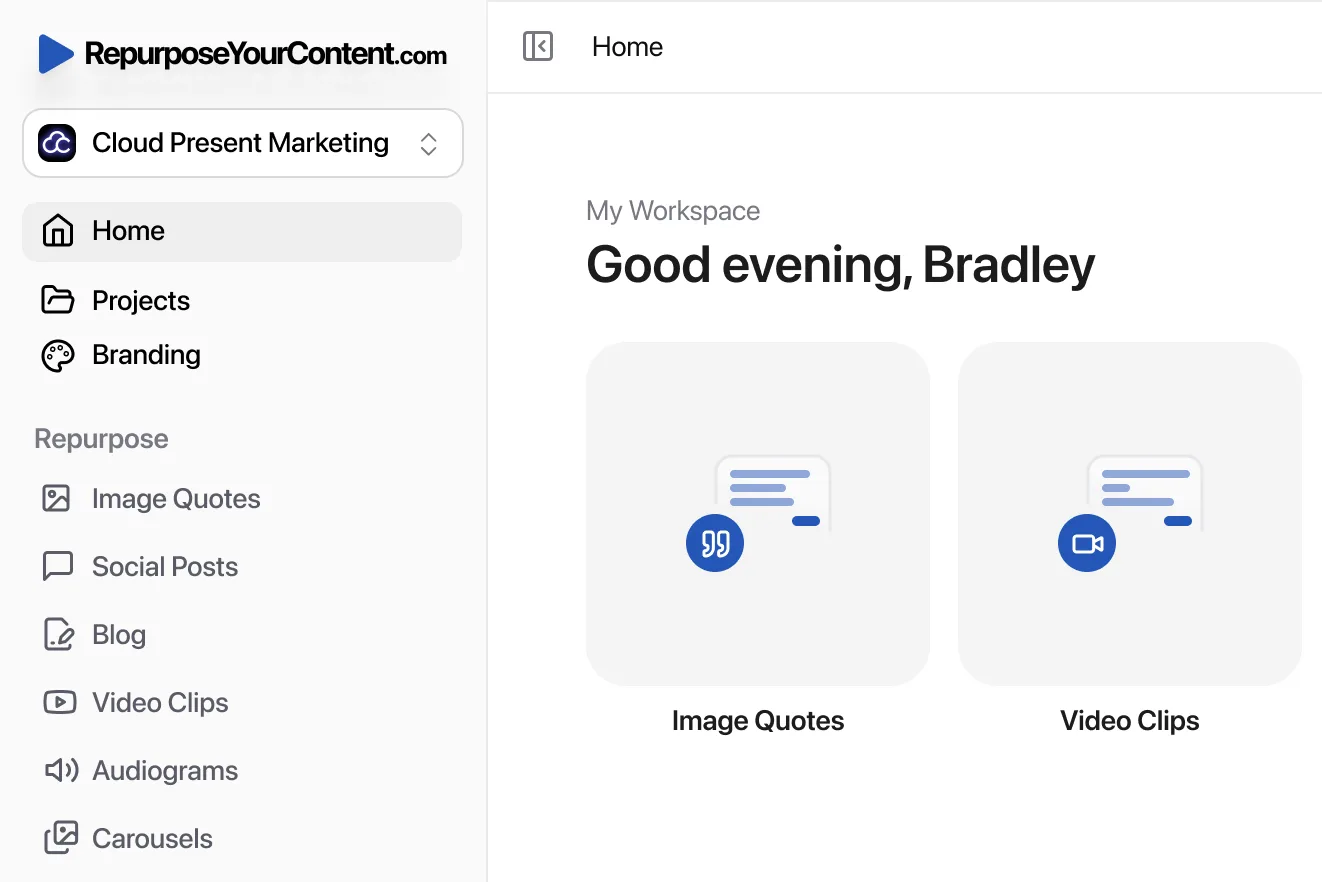
- Image Quotes: The tool isolates powerful quotes and turns them into branded graphics. These make perfect hook or proof slides.
- Audiograms: It creates short, shareable audio clips with animated captions, perfect for social media.
- Newsletters: You can generate a full email newsletter summarizing the webinar's key takeaways.
- LinkedIn Carousels: Select the ‘Image Carousels’ feature. The AI generates a ready-to-publish, branded slide deck in minutes.
- Video Clips: It also extracts short, impactful video clips, ideal for TikTok, Reels, and Shorts.
This automated approach helps you scale content production. You can turn one webinar into several high-engagement carousels.
To master this, you must distill your content's essence. Learning how to summarize your meetings and turn talk into action helps you quickly pinpoint insights for your slides.
From Webinar Insight to Carousel Slide
Think of each key point from your webinar as a potential slide. Did a speaker share a surprising statistic? That is your hook slide. Did you outline a three-step process? Those are your solution slides.
The AI in RepurposeYourContent is trained to spot these valuable snippets. It serves them up to you.
This cuts out the most time-consuming part of creating LinkedIn carousels. Instead of sifting through a 60-minute recording, you get a curated list of impactful moments. You review the auto-generated slides, make a few tweaks, and you are ready to post.
While this article focuses on carousels, you can also create standalone LinkedIn posts from a webinar using the same material.
This is how you turn one pillar content piece into a stream of high-performing assets for LinkedIn.
Stop the content grind. Try RepurposeYourContent and see how your next webinar can become weeks' worth of marketing content.
A Real-World Carousel Creation Workflow
Let’s look at what this looks like in practice. This is a real-world process for a B2B marketer who needs to create carousels quickly.
This is how you go from a 60-minute webinar to a ready-to-post carousel in minutes.
Here’s a simple visualization of the journey from raw webinar footage to a finished carousel.

The AI bridges the gap. It turns your raw video directly into a structured, visual asset.
Step 1: Upload Your Webinar Recording
Give the system your source material. Upload your finished webinar recording. You can also drop in a link from Zoom or YouTube. Do not pre-edit or trim it. Hand over the raw recording.
Step 2: Let RepurposeYourContent Do the Work
This is where you save time. The work you used to do—re-watching the webinar, finding quotes, structuring points—is now automated.
Once you’ve uploaded your webinar, RepurposeYourContent gets to work. Its AI analyzes the transcript and video. It finds the most valuable insights, stats, and quotes.
For this workflow, just tell it you want ‘Image Carousels’. The tool takes those insights and builds them into ready-made carousel slides.
It also:
- Generates Timestamps for all key moments.
- Creates a full Blog Post from the transcript.
- Extracts Image Quotes from compelling statements.
You can ask it to generate multiple versions to A/B test. Each one is styled with your brand kit.
Step 3: Polish and Publish
In minutes, you will have a complete, on-brand carousel. Each PDF is structured with a logical flow.
Your job is simple. Review the generated carousel. Make any small tweaks. Download the PDF. Then, post it on LinkedIn with compelling copy and a clear CTA. This process is the foundation of an effective content repurposing workflow for small teams.
Stop spending hours creating content from scratch. Try RepurposeYourContent and turn your webinars into weeks of high-performing assets.
Your LinkedIn Carousel Questions Answered
You have your plan and your content. Let's tackle some common technical questions. Getting these details right makes a huge difference.
What Are the Best Dimensions for Carousel Slides?
The size of your slides matters. Most people will see your carousel on their phone. Two sizes work best for B2B content.
- Square (1080 x 1080 pixels): This is the standard format. It is mobile-friendly. It gives you a good balance of space for visuals and text.
- Vertical (1080 x 1350 pixels): This is a scroll-stopper. It takes up more screen space on a mobile feed. It is harder to ignore. If you have strong visuals, this format is excellent.
Use the same dimensions for every slide. Consistency creates a professional look.
Can I Put Clickable Links Inside My Carousel PDF?
No. You cannot embed clickable hyperlinks directly into the PDF. LinkedIn converts the file into a document post. Any links inside become dead text.
Instead, dedicate your final slide to a strong call-to-action (CTA).
My top tip: Make your final slide a clear instruction. Use text like "Find the link in the post above." Then, put the actual URL in the main description above your carousel. That is the only place your audience can click it.
How Does the LinkedIn Algorithm Treat Carousels?
The algorithm loves carousels. It prioritizes anything that keeps people on the platform longer. This metric is called "dwell time."
Carousels generate dwell time. Every time someone swipes to the next slide, they send a signal to LinkedIn. It shows your content is engaging.
This is why carousels see 3-5x more engagement than a text post. The algorithm sees people interacting. It rewards you by showing your post to a wider audience.
Ready to turn your expert content into high-engagement carousels automatically? Try RepurposeYourContent and see how you can generate weeks of LinkedIn content from a single webinar.
Tags: