How to Create a Social Media Carousel From Video: A Step-by-Step Guide
How to create social media carousel from video: turn clips into engaging, swipeable LinkedIn and Instagram posts.

Your webinar was a success. Hundreds of leads registered. But now, less than 2% of your audience will ever watch the full recording. All that expert knowledge is trapped in a format nobody on social media has time for.
This is a common mistake for B2B marketers. You need to stop posting full-length videos. Instead, you can turn that one asset into a dozen high-performing content pieces. This guide shows you exactly how to create a social media carousel from video, turning your content into something people will actually stop and read.
Why Long-Form Videos Fail on Social Media
Busy B2B professionals do not have 45 minutes for a video during their LinkedIn scroll. They want high-value insights they can absorb in under 60 seconds. This is where carousels excel. They break down complex topics into clean, scannable slides that respect your audience's time.

The numbers support this. Short-form video now drives 58% of all social media engagement. Long recordings must be sliced into formats that match modern consumption habits. This is the core of a smart content repurposing strategy.
The Content Repurposing Imperative
Stop seeing your webinar as a single asset. See it as a content mine. A single 60-minute recording can become dozens of micro-assets. You can create multiple carousels, short video clips, and quote cards. This isn't about more work. It's about getting more value from work already done.
Repurposing your video content is non-negotiable for B2B marketers. Here’s why:
- You Reach More People: Some people prefer to read. Others prefer to watch. Offering both formats connects you with a wider audience.
- Engagement Increases: Bite-sized, educational carousels earn likes, comments, and shares. They are built for interaction.
- Your Message Sticks: Presenting core ideas in different formats reinforces your expertise.
This guide shows you the manual process for creating carousels. It will also show you a faster, automated way to repurpose video content for social media.
The Manual Way: Turning Video into a Carousel
The manual route offers total creative freedom. The only cost is your time. This process requires focus, but you can produce high-quality carousels once you learn the steps.
Your first mission is to find 5-8 key takeaways from your video. Webinars are ideal for this. They are structured around distinct teaching points, which makes your job easier.
Step 1: Find Your Core Content
As you watch your video, listen for concise, powerful insights. These points will form the foundation of your carousel. Summarize each key idea into a single, punchy statement. This statement will be the headline for each slide. Remember the rule: one core idea per slide.
Pro Tip: Listen for phrases like, "The most important thing to remember is..." or "Our data shows that...". Speakers often signpost their most valuable insights. These are perfect markers for your carousel slides.
Step 2: Design and Structure Your Carousel
With your key points identified, it's time for design. Use a tool like Canva to create a simple, branded template. Use your brand colors and fonts. Place your logo consistently on each slide. This builds brand recognition every time someone sees your content.
Next, you need to structure the flow. A well-structured carousel tells a story and guides the reader from one slide to the next. For LinkedIn and Instagram, a 10-slide structure works perfectly.
A 10-Slide Carousel Template for Engagement
Follow this slide-by-slide template to structure your video content.
| Slide Number | Content Purpose | Example |
|---|---|---|
| Slide 1 | The Hook Question | Is Your Webinar Content Going to Waste? |
| Slide 2 | Key Point 1 | Problem: Only 2% Watch Full Recordings. |
| Slide 3 | Key Point 2 | Solution: Break It Into Micro-Content. |
| Slides 4-8 | Key Points 3-7 | Present a series of tips, steps, or insights. |
| Slide 9 | The Summary | Recap: Turn 1 Video Into 10+ Assets. |
| Slide 10 | The Call-to-Action (CTA) | Want to automate this? Try RepurposeYourContent. |
This structure turns a list of tips into a compelling narrative that keeps people swiping.
Step 3: Write Your Caption and Post
The final step is writing the social media caption for your carousel. Your opening line must match the hook on your first slide. This creates a seamless experience and gives people a reason to stop scrolling. Keep the rest of the copy short. Push people to swipe through the slides to get the full value.
For LinkedIn, always upload the carousel as a PDF document. This format gets the best reach. On Instagram, post it as a standard multi-image post.
You have now successfully transformed a single video into a powerful piece of micro-content. You can also extract video clips from a webinar to add more variety to your content.
How RepurposeYourContent Helps
The manual process works. But it is a major time commitment. Most B2B marketing teams are already stretched thin. They do not have hours to re-watch long videos and design slides. Automation changes the process. You get a better result in a fraction of the time.
RepurposeYourContent makes the workflow fast. You provide a link to your video from Zoom, YouTube, or another platform. The platform's AI does the heavy lifting.
From Video to Carousel in Five Minutes
First, the AI transcribes the entire video. Then, it automatically identifies the most important insights and teaching moments. You no longer need to manually search for key points. The platform finds them for you.
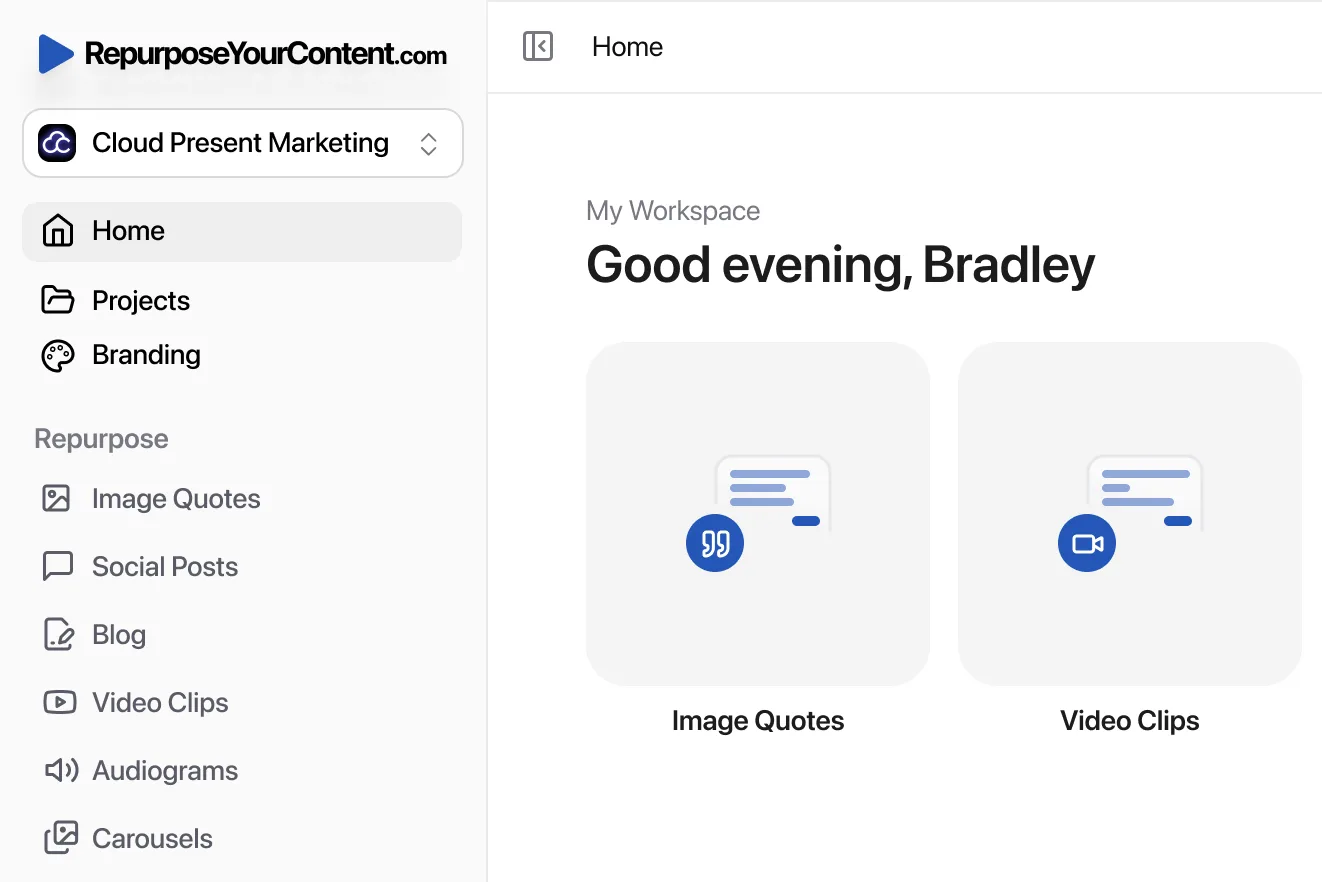
From there, you just select ‘LinkedIn Carousels’ from the output options. The system takes the AI-identified insights and places them onto professionally designed slides. Your brand kit—logos, fonts, and colors—is applied automatically.
The result is a polished, 10-slide carousel in about five minutes. Here's what you can create from a single video:
- Video Clips: Short, engaging clips for Reels and Shorts.
- Blog Posts: A full, SEO-optimized article.
- Social Posts: A week's worth of content.
- Audiograms: Shareable audio snippets.
- Image Quotes: Compelling visuals with key quotes.
- Newsletters: Ready-to-send email content.
- LinkedIn Carousels: The format we've focused on.
- Timestamps: A chaptered breakdown of your video.
This is how you turn one 60-minute webinar into 47 pieces of content. For more on this, read our guide to automate webinar repurposing.

It’s about hooking your audience, delivering value quickly, and guiding them to the next step.
Scale Your Entire Content Engine
This process is not just about making one carousel faster. It is about scaling your entire content operation. That single video can fuel a campaign's worth of assets. You can also turn your video insights into compelling image-based content for even more variety.
Automation transforms content creation from a series of manual tasks into a scalable system. Instead of spending a day creating one carousel, you spend minutes generating a month’s worth of content. For technical users, API guides can show you how to automate your Instagram carousel workflow.
This shift frees your team to focus on strategy, analysis, and audience engagement. It is the difference between keeping up and getting ahead.
Stop wasting hours on tasks an AI can do better. Try RepurposeYourContent today.
A Real-World Workflow Example
How does this work in practice? Imagine a B2B SaaS company just finished a product demo webinar. Their team needs to get maximum value from it but has limited time. Here is a real workflow showing how they can turn one demo into a week of content in just 15 minutes.

Step 1: Upload the Video Recording
The marketing manager takes the 45-minute Zoom recording and uploads it directly to RepurposeYourContent. There is no need to rewatch the entire video to find the best parts. They simply select the content assets they want to generate:
- One LinkedIn Carousel highlighting the product’s core benefits.
- Five short video clips for daily social media posts.
- One SEO-friendly blog post for organic search traffic.
Step 2: Let the AI Extract Key Points
The AI analyzes the entire video. It identifies the most compelling moments and starts building the assets. For the carousel, it extracts eight distinct product benefits. Each benefit becomes a dedicated slide. The AI writes the hook slide ("8 Ways Our Platform Saves You 10+ Hours a Week") and a clear CTA ("See it in action? Book a demo."). The company's brand kit is already loaded, so every slide is perfectly styled.
Step 3: Review and Schedule the Content
The marketing manager gives the assets a quick review. They tweak the text on one slide to better match their brand voice—a ten-second edit. They download the PDF for LinkedIn and PNG files for Instagram. The carousel is scheduled for Tuesday. The video clips are scheduled for the rest of the week. The blog post goes live with the carousel and clips embedded.
The entire process, from a 45-minute webinar to a multi-channel content campaign, took 15 minutes. This is a smarter, more strategic way to get full value from your video content.
Ready to scale your content? Try RepurposeYourContent and see how fast you can turn your videos into assets that drive results.
Your Posting Strategy for Maximum Carousel Reach
You have a great carousel. That's only half the job. You need a smart posting strategy that plays to each platform's strengths.
Your LinkedIn Carousel Strategy
For LinkedIn, post your carousel as a PDF document. This is non-negotiable. The LinkedIn algorithm gives native documents much more visibility in the feed. Do not share a link to an external presentation. This will kill your reach.
Keep your caption short and direct. Your first sentence should match the hook on your first slide. Add 3-5 relevant hashtags to attract the right audience.
Your Instagram Carousel Strategy
On Instagram, share your slides as a standard multi-image post. Use all 10 available slots. You have more space in the caption, so expand on your points and offer extra value.
The platform is focused on interactive formats. Reels' contribution to total Instagram engagement in the UK grew from 21% to 31% between 2023 and 2025. This data from you can check the full 2025 social media report shows users want dynamic content. Carousels turn your highlights into a compelling visual story. For more data, check out these social media marketing statistics.
Use a mix of high-volume and niche hashtags. This will broaden your exposure while targeting your ideal audience.
Key Takeaway: Post when your audience is most active. But don't just post and forget. Track everything. See which hooks get swipes and which CTAs drive clicks. This cycle of testing and refining turns a good carousel into a lead-generating asset.
Getting this right is a critical part of how you turn a webinar into social media posts that deliver results.
Automate this entire workflow. From video editing to carousel generation. Start your free trial of RepurposeYourContent today.
Still Got Questions About Turning Videos into Carousels?
Here are answers to common questions from B2B marketers.
What’s the ideal number of slides?
The sweet spot for LinkedIn and Instagram is between 7 and 10 slides. This is a tested formula. Your first slide is the hook. Your last slide is the call to action. This leaves you 5 to 8 slides to deliver your teaching points. It's enough to provide value without overwhelming your audience. Fewer than seven slides can feel thin. More than ten can cause drop-off.
Can I put video clips inside my carousel?
No. You cannot embed video clips into a LinkedIn document carousel or an Instagram multi-image post. They are static formats.
A smarter approach is to use both formats. Publish the carousel to share key takeaways. A few days later, share short clips from the same video as separate posts. This gives you two high-performing assets from one source.
How do I make my carousel look good on mobile?
You must design for mobile from the start. This is not optional. Use large, bold fonts, with a minimum size of 30pt. Keep the copy on each slide to two or three short sentences. High contrast is essential for readability.
Before you post, check the final version on your phone. If you have to squint or zoom, your text is too small. Go back and fix it.
Ready to make this process easier? Try RepurposeYourContent and see how quickly you can turn your videos into effective carousels. Start your free trial today.
Tags: