How to Import and Repurpose Microsoft Teams Recordings
Learn how to import and repurpose Microsoft Teams recordings. A step-by-step guide for B2B marketers to turn Teams meetings into marketing assets.

Microsoft reports that Teams has more than 320 million monthly active users. In large organisations, that means a steady backlog of customer calls, internal webinars, product briefings, and town halls already exists. The missed opportunity is usually not production volume. It is file access.
Marketing teams often know the recording exists but cannot get the right version, from the right SharePoint site or OneDrive, with approved rights for reuse. As a result, strong source material sits in Microsoft 365 while teams spend budget creating net-new assets that repeat points already captured on video.
That is why how to import and repurpose microsoft teams recordings is an operational issue before it becomes a content issue. The team that can access files cleanly, with the right permissions and audit trail, usually has more usable raw material than it can produce in a single campaign cycle.
A proper Microsoft Teams integration for repurposing workflows helps handle that access layer correctly. It gives marketing a controlled path to import approved recordings without asking IT to loosen governance or hand out broad admin rights.
Your Biggest Untapped Content Source is Hiding in Teams
Most marketing teams already have the raw material. They just can't reach it.
The common failure point isn't content quality. It's storage ownership and permissions. A webinar team runs the event in Teams. The recording lands in SharePoint or the organiser's OneDrive. Then marketing asks for the file and hits three blockers at once. No folder access, no direct download rights, and no clear process for approved reuse.
That's why Teams archives often become dead storage. Internal experts share strong points on product positioning. Sales leaders answer objections in plain language. Customers describe pains in their own words. None of that becomes clips, posts, or follow-up content if the marketing team can't get the source file.
Practical rule: Before planning another webinar, check whether the business already owns reusable Teams recordings from the last quarter.
This matters even more in large organisations. Security teams usually set permissions correctly for risk control, not for marketing speed. That's reasonable. But it means content teams need a workflow that respects those controls instead of trying to bypass them.
A sensible starting point is a proper Microsoft Teams integration for repurposing workflows. The right setup doesn't ask for broad admin access. It asks for the minimum approved access needed to locate, import, and process the right recording files.
Why the permission problem matters more than production volume
A busy enterprise marketer can spend weeks organising a new webinar. Meanwhile, dozens of existing recordings already contain:
- Customer language: Real objections, use cases, and buying triggers.
- Executive commentary: Material for thought leadership and newsletter copy.
- Product explanations: Clear source material for clips, blogs, and sales follow-up.
- Internal training moments: Content that can be adapted for onboarding or enablement.
Running more events won't fix a broken retrieval process. Teams already holds the backlog. The practical job is to make that backlog accessible, compliant, and repeatable.
First Step Find and Secure Your Recording Files
Before anything gets repurposed, the team needs the original file. That's where most workflows break.
Microsoft Teams stores recordings in different places depending on how the meeting was created. Channel meetings usually save to SharePoint. Private meetings usually save to the organiser's OneDrive. If marketing doesn't know which meeting type created the file, it often asks the wrong person for access.

Microsoft Teams recording storage locations
| Meeting Type | Storage Location | Default Permissions |
|---|---|---|
| Channel meeting | SharePoint site linked to the Team | Team members with access to that SharePoint library |
| Private meeting, one-to-one, small group, town hall organised outside a channel | Organiser's OneDrive | Organiser and anyone the organiser explicitly shares with |
This isn't unusual. It's how enterprise file governance should work. The problem starts when content teams assume they need full admin rights. They usually don't.
The access request that actually works
Ask for read access to the specific Recordings folder, not broad SharePoint control. That request is easier for IT to approve because it matches least-privilege access. If the file sits in OneDrive, ask the organiser to create a shareable internal link for the exact recording.
A good request is short and specific:
- Name the file: Include meeting title and date.
- Name the path: Ask for the SharePoint Recordings folder or the OneDrive file link.
- Name the purpose: State that the file is needed as a marketing asset for approved repurposing.
- Name the access level: Read-only is usually enough.
The teams that move fastest don't ask for more access. They ask for narrower access with a clearer reason.
What to check before requesting the file
A few checks save days of back-and-forth.
Confirm meeting type first
If the session happened inside a Team channel, start with the SharePoint owner. If it didn't, start with the organiser.Check whether the recording still exists
Retention rules may remove old files. Don't assume last quarter's webinar is still available.Ask for the recording and transcript together
Even if the first use case is clips, the transcript speeds blog, email, and social production later.Use shared shortcuts if the folder is reused often
If the same business unit runs recurring webinars, ask IT to create a stable access path instead of one-off shares.
For teams that also manage recordings from other platforms, the same access logic applies. This guide on how to import and repurpose Google Meet recordings shows the same pattern. The storage system changes, but the bottleneck is still permissions.
What doesn't work
Manual forwarding from one person's desktop usually creates more friction than it solves.
Avoid these patterns:
- Emailing large video files: Version confusion starts fast.
- Downloading to personal laptops by default: That creates avoidable security and retention issues.
- Asking for site admin rights: IT will often reject this, and rightly so.
- Starting with content edits before file ownership is clear: Approval gets messy later.
A clean process starts with the source file, the source owner, and the correct permission path.
How to Import and Repurpose Microsoft Teams Recordings
Enterprise teams often already have hours of usable webinar, training, and customer event footage sitting in Teams. The blocker is rarely content supply. It is getting the approved file, transcript, and output workflow connected without breaking permission rules or creating a compliance issue.

A good import process should reduce handoffs. If marketing has to chase desktop downloads, forwarded files, and one-off exports, production slows down and auditability gets worse. The better path is to pull from the approved Microsoft storage location, keep access tied to the right account, and generate draft assets from that controlled source.
The five-step workflow
Confirm the source file and transcript are production-ready
Open the MP4 from its approved storage location and check that it is the final recording, not a partial upload or duplicate version. If captions or a transcript exist, bring those in at the same time because they speed review, clipping, and written asset creation.Use an approved access method
Some teams will use a Microsoft sharing link. Others will require import through a connected Microsoft account that already has permission to the file. The right choice depends on policy, but both are better than passing files around by email or personal download.Import with the correct identity
This is the step that breaks in large organizations. The person connecting OneDrive or SharePoint has to be someone whose access will stay valid after the campaign goes live. If the connection is tied to an intern, agency freelancer, or event contractor, the pipeline often fails later when access is revoked.Match outputs to the recording's actual value
Product demos usually produce useful clips, follow-up email copy, objection handling snippets, and blog sections. Internal town halls may be better suited to summaries, quote pulls, and timestamped recaps for employees. The format should follow the audience and approval risk.Review for claims, confidentiality, and channel fit before publishing
AI can draft fast. Legal, brand, and subject-matter reviewers still need to remove forward-looking statements, customer names, internal roadmap references, and regulated language before anything goes live externally.
A practical enterprise example
A regional marketing team runs a monthly Teams webinar with product marketing, sales engineering, and one customer speaker. The recording lands in SharePoint. Product marketing has access. Corporate content does not.
The clean workflow is straightforward. Product marketing keeps ownership of the file. Corporate content imports it through an approved connection or shared path, generates a first draft set of assets, and sends only the outputs for review. That keeps source access narrow while still giving the content team what it needs to work at scale.
In practice, this approach solves the fundamental permissions problem. Teams can repurpose approved recordings without asking IT for broad admin rights, copying files onto unmanaged devices, or creating new storage sprawl just to make one webinar usable.
If audio-only reuse matters, a clean converter can help when the workflow needs podcast snippets or transcript-first processing. This vitelnk's secure MP3 conversion is a useful fallback when the team needs to extract audio from approved video files before repurposing.
Start with the approved business use case. Then choose the formats that fit that use case and the permission level you already have.
Repurposing options from one Teams file
A single approved Teams recording can usually support several downstream assets if the file quality and transcript are strong:
- Short clips for LinkedIn, paid social, sales follow-up, and landing pages
- Blog drafts built from the transcript and speaker structure
- Email copy for webinar follow-up, nurture, or newsletter sends
- Social posts based on strong points, FAQs, or objections
- Audiograms for audio-first distribution
- Quote graphics from customer or executive statements
- Carousel copy for slide-led distribution
- Timestamps and summaries for sales, customer success, and internal enablement
Teams that want a tighter editing workflow can also follow this guide on extracting video clips from webinars, especially when reviewers need to approve short-form video before anything is published.
Automate Your Content Engine with RepurposeYourContent
Manual workflows usually fail at the same point. The team gets the file, then stalls on production volume.

A proper system should do more than clip video. It should turn one approved recording into a usable campaign set. That means handling import from cloud storage, reading the transcript, identifying strong segments, and producing outputs that fit the channels the team already uses.
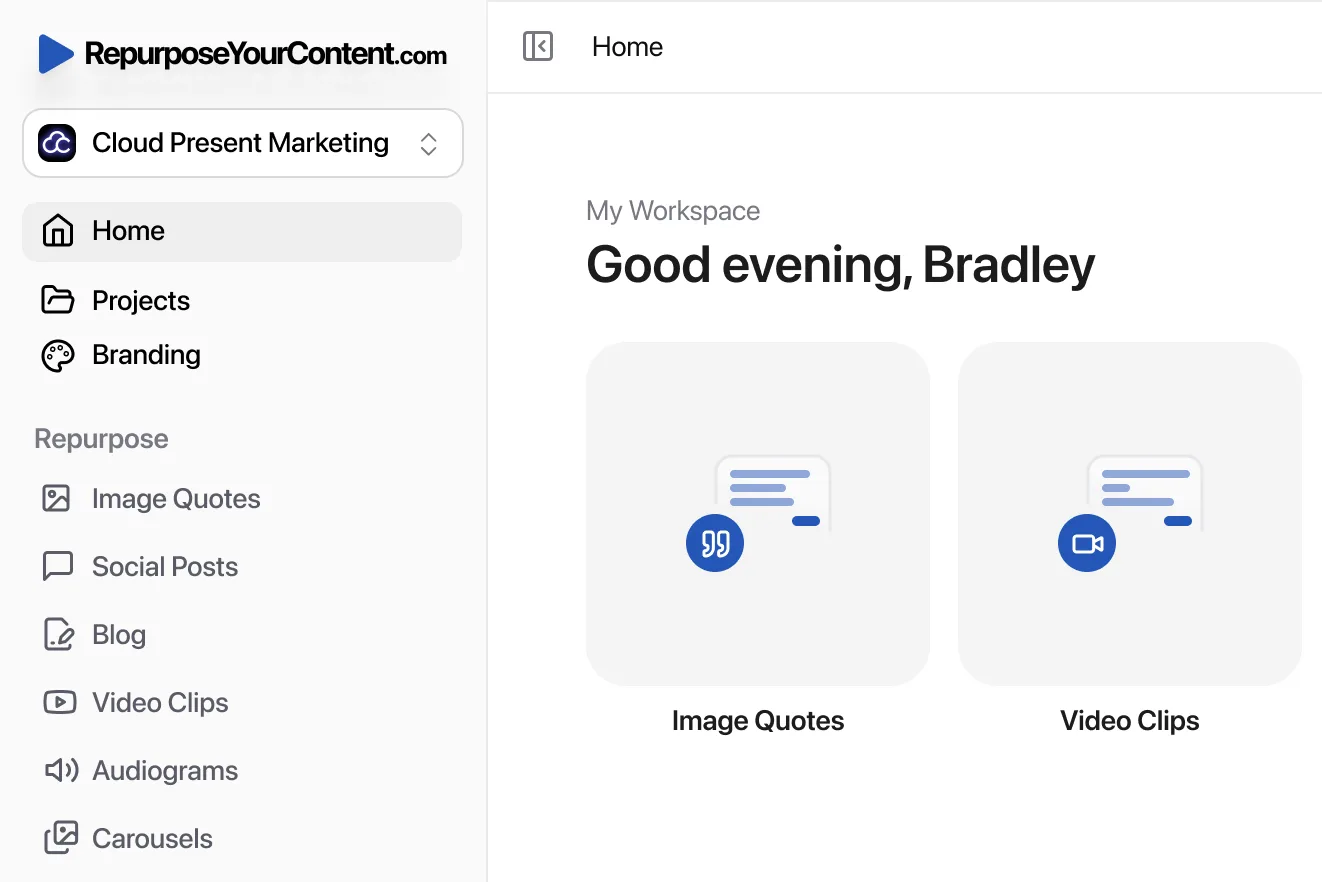
One option is RepurposeYourContent, which supports turning webinar recordings into multiple outputs from a single source file. For Microsoft Teams use cases, the practical value is that the workflow can start from the recording the business already owns instead of forcing the team to rebuild content manually.
What a full output set should include
A useful repurposing workflow should cover more than one format. For enterprise teams, the common list looks like this:
- Video clips for social, ads, and nurture pages
- Blog posts based on transcript themes
- Social posts that pull out usable points fast
- Audiograms for audio-first publishing
- Image quotes for speakers and executive commentary
- Newsletters or email sequences for follow-up
- LinkedIn carousels built from structured ideas
- Timestamps to help editors and reviewers move faster
That's the difference between an editing tool and a content pipeline.
For teams comparing automation options, this article on automating webinar repurposing is a practical next read. It helps frame what should be automated and what still needs human review.
What works better than manual production
Manual production still has a place for flagship campaigns. It's less effective for recurring Teams webinars, demos, and internal events where speed matters more than custom creative every time.
Good automation tends to work best when the team:
- Starts with recurring recordings: Monthly webinars and town halls are ideal.
- Uses templates by meeting type: Customer webinar outputs shouldn't match internal all-hands outputs.
- Reviews for brand and compliance after generation: Draft first, polish second.
- Stores the final assets in a shared marketing library: Not in scattered local folders.
Teams that care about transcript quality at capture stage may also want a broader guide to real-time STT solutions from HyperWhisper. Better speech-to-text upstream usually makes every downstream asset cleaner.
A quick product walkthrough helps make the workflow concrete:
The point isn't to automate everything blindly. The point is to remove the repetitive work that keeps good recordings trapped as unused files.
Managing Enterprise Compliance and Data Security
For enterprise teams, the biggest objection usually isn't content quality. It's risk.
A UK survey found that 68% of B2B marketers cite data privacy as the top barrier to video content repurposing, with potential fines for non-compliance averaging £17.5m according to ICO data, as reported by IAB UK's digital adspend coverage. That concern is valid. Teams recordings often include names, faces, opinions, commercially sensitive details, and meeting chat context.

What the marketing team needs to check first
There are four practical checks before any public-facing reuse:
- Consent status: Was the session recorded with clear participant awareness, and does that consent cover derivative content?
- Audience type: Internal meetings, customer calls, and public webinars should not be treated the same way.
- Retention policy: The file may be scheduled for deletion, or it may need controlled retention.
- Data residency and storage path: The team should know where the source file and derived assets are processed and stored.
A strong starting point is to align with the organisation's existing Teams governance model. This overview of Microsoft Teams governance is useful for framing ownership, retention, and access rules before marketing adds a repurposing layer.
Safer ways to repurpose recordings
The riskiest workflow is usually the simplest-looking one. Someone downloads the MP4, emails it around, edits clips locally, and loses track of who has copies.
Safer workflows usually include:
Controlled access to the original file
Keep the source in OneDrive or SharePoint where possible.Approved processing environment
Use platforms and workflows that fit internal data handling requirements.PII review before publication
Remove names, private comments, or off-record details from outputs.Clear approval path
Legal, compliance, or comms may need to review certain recording types before external use.
Compliance problems rarely start at publication. They start earlier, when teams lose track of who approved the source material.
Retention and residency are content issues too
Marketers often treat retention as an IT issue. It isn't only that.
If a valuable Teams recording is auto-deleted before the team imports it into an approved workflow, that content is gone. If the team exports files into the wrong storage location, it may create a fresh compliance issue just by moving the asset.
That's why privacy and content ops have to work together. The team should know what can be reused, where it can be processed, and how long it can be kept. For teams evaluating vendor fit, the RepurposeYourContent privacy page is the right place to review current handling expectations and security information.
Frequently Asked Questions
What if IT won't give marketing SharePoint admin rights
That's usually fine. Marketing rarely needs admin rights.
What's needed is read access to the specific recordings folder or a direct share link to the file. Asking for narrow access is easier to approve and easier to justify. Admin rights create unnecessary risk and usually slow the request down.
A concise request should include the meeting name, date, owner, folder path if known, and the intended content use.
Can Teams recordings from customer meetings be repurposed
Only if the business has appropriate consent for that use.
If a customer joined a working session or private call, that doesn't automatically mean their comments can appear in public marketing. The safest route is written consent that covers derivative use such as clips, quotes, or social content. Without that, the team should stick to anonymised themes and general insights.
If there's any doubt about consent, repurpose the idea, not the person.
How do retention policies affect imported recordings
Retention can remove recordings before marketing ever sees them. That's why high-value sessions should be identified quickly and moved into an approved content workflow while access still exists.
The practical fix is operational, not creative. Keep a regular handoff between webinar owners, IT, and marketing so important recordings are flagged early.
Is it better to download the file or import by link
That depends on company policy. In many enterprise environments, importing through an approved cloud access path is cleaner because it reduces unnecessary local copies.
A local download may still be required in some environments. If so, use a managed device, a defined storage location, and a documented deletion process after processing.
What file types matter most for repurposing
The core file is usually the video recording itself. A transcript is also valuable because it speeds blog creation, quote extraction, approvals, and searchability.
If the session includes slides or supporting documents, keep those with the recording. They help the content team interpret context and reduce factual mistakes during adaptation.
What can one Teams recording realistically become
A good session can support multiple outputs if the topic is clear and the speakers are strong. Common outputs include short clips, a blog draft, LinkedIn posts, newsletter copy, audiograms, quote graphics, carousel text, and timestamped highlights for internal reuse.
The stronger the original session structure, the easier the repurposing. Clear segments, clean introductions, and a focused Q&A usually produce the best results.
Who should own this workflow inside the business
In most enterprises, ownership should be shared but defined.
- IT or collaboration admin teams manage access, governance, and storage rules.
- Meeting owners confirm whether a recording is suitable for reuse.
- Marketing or content ops handle import, transformation, review, and distribution.
- Legal or compliance reviews higher-risk recordings when required.
When nobody owns the handoff, the recording stays trapped.
If the team wants to stop losing good content inside Teams, the next step is simple. Try RepurposeYourContent and turn approved Microsoft Teams recordings into ready-to-publish content faster.
Tags: