How to Import and Repurpose Google Meet Recordings Fast
Learn how to import and repurpose Google Meet recordings into blogs, clips, and social posts. Turn your raw video files into 30 days of content.

Many organizations already have a content backlog sitting in Google Drive. They just don’t label it as content.
UK businesses conducted an average of 1,247 million Google Meet sessions annually by 2024, creating over 300 petabytes of raw video data in Google Drive’s “Meet Recordings” folders, according to this referenced dataset. A large share of that material comes from webinars, customer interviews, sales conversations, internal training, and thought-leadership discussions. Those are often the most credible assets a B2B team can publish.
That’s why how to import and repurpose google meet recordings matters. The hard part usually isn’t recording the meeting. It’s finding the file, getting the transcript, handling permissions, and turning one long conversation into assets a team can ship this week.
The Untapped Content Goldmine in Your Google Drive
Google Meet recordings usually die in the same place. One organiser’s Drive. One folder nobody checks. One file name that starts with a date and ends with “meeting recording”.
That’s wasteful, because Google Meet captures the exact material B2B marketers keep trying to recreate later. Clear customer language. Objections from real buyers. Strong quotes from subject matter experts. Clean explanations from internal enablement sessions. This isn’t scripted brand copy. It’s source material.
Why Google Meet recordings work so well as content
A recorded webinar is obvious content. A customer interview is content too. So is an internal training where a solutions consultant explains a recurring buyer problem better than any blog draft ever could.
The difference is workflow. Teams tend to treat Google Meet as a meeting tool, not a publishing input.
Practical rule: If a conversation teaches, clarifies, or answers a repeated question, it can become publishable content.
That shift changes what gets saved and what gets repurposed. Instead of asking whether a call was “content”, ask whether it contains a useful angle for a buyer.
What usually gets missed
Most guides stop at “download the MP4”. That’s only the admin step. The actual value comes after that.
A single strong recording can feed:
- A blog post built from the main argument
- Short video clips for LinkedIn
- Audiograms for audio-first snippets
- Social posts pulled from notable quotes
- Email copy for follow-up and nurture
- Image carousels built from key steps or frameworks
Teams that want a stronger process should also study broader strategies to extend video lifespan, because the recording itself isn’t the final asset. It’s the raw material.
For more ideas on what to turn recordings into, this guide on the best ways to repurpose webinar recordings is a useful companion.
First Steps Finding and Preparing Your Recordings
The most common failure happens before import. Recording wasn’t enabled, the wrong person is looking for the file, or the team grabs only the video and forgets the transcript.
Start in Google Workspace, not in your repurposing tool.
Check that recording is actually enabled
For Workspace accounts, recording needs to be enabled in the Admin Console under Google Meet settings. If that setting isn’t on, there won’t be anything to import later.
The standard path is:
- Open Admin Console
- Go to Apps
- Choose Google Workspace
- Open Meet
- Turn Recording on
If transcripts matter for your workflow, enable those too. Video alone is usable. Video plus transcript is much easier to repurpose cleanly.
A visual check helps when a junior marketer is trying to locate the source file fast.

Find the right file in Drive
Google Meet recordings usually land in the meeting organiser’s Google Drive, inside Meet Recordings.
That matters because the attendee who needs the file often isn’t the organiser. When someone says, “the recording is missing”, the file often exists. It’s just sitting in somebody else’s Drive.
Use this checklist:
- Check the organiser’s Drive. Don’t start with the speaker’s account unless they organised the meeting.
- Open the Meet Recordings folder. That’s the default location for saved recordings.
- Look for the MP4 first. That’s the primary upload file for most repurposing workflows.
- Pull the transcript if available. A transcript speeds up clipping, quoting, and blog drafting.
If the team also needs a transcript workflow beyond Meet’s native output, this guide on how to transcribe video automatically helps fill gaps.
Prepare the recording before import
Don’t upload blindly. Quick prep saves edits later.
| Check | What to confirm | Why it matters |
|---|---|---|
| File format | MP4 is available | It’s the cleanest starting point for most tools |
| Permissions | The marketer can access or download it | Shared links often fail because access is restricted |
| Audio quality | Voices are clear enough to transcribe | Poor source audio creates weak clips and messy copy |
| Transcript | Exported or enabled | It improves written outputs and quote extraction |
Clean source files beat clever editing. If the meeting audio is muddy, every downstream asset gets harder.
Two recurring issues deserve attention. First, retention settings. Some teams clear meeting files on a schedule, so older recordings disappear before marketing ever sees them. Second, storage pressure. When Drive space is tight, downloads and file handling can get messy. In those cases, archive old files into the right shared location before building a repeatable workflow.
How to Import Google Meet Recordings into RepurposeYourContent
Once the file is ready, the import itself should be simple. If it isn’t, the setup is wrong.
There are two practical paths. Download the file from Drive and upload it manually, or connect the source account for a smoother handoff. Both work. Manual upload is usually better for one-off recordings. Direct connection is better when a team handles Google Meet content every week.

Manual upload workflow
This is the cleanest option when a team just needs to move fast.
- Download the MP4 from Google Drive
- Open the upload area in the platform
- Drag the file in
- Wait for processing
- Review the transcript and speaker split
According to the Google Meet integration page, the average processing time for a 60-minute Google Meet video is 3 to 4 minutes, with a 95% success rate. For multi-speaker sessions, the AI reaches 92% accuracy in detecting who is talking.
That’s good enough for most marketing workflows. It still needs review. Buyer-facing content should always get a human pass before publishing.
Direct import and account connection
For repeat usage, connecting the source account cuts manual file wrangling. It also helps teams avoid the “download to desktop, re-upload, lose track of versions” problem.
Use a connected workflow when:
- The team runs frequent webinars
- Sales records customer interviews in Meet
- Marketing needs a shared intake process
- Multiple people publish from the same recording source
A direct connection also reduces local file clutter. That sounds minor, but it matters once several recordings pile up in a week.
What happens after upload
The import stage is more than file transfer. The platform parses the recording into usable inputs.
That usually includes:
- Transcript generation
- Speaker separation
- Timestamp mapping
- Content segmentation
- Asset preparation for clips and written outputs
Don’t judge the workflow by the upload screen. Judge it by how clean the transcript, speaker labels, and timestamps look after processing.
If those basics are wrong, the rest of the repurposing stack becomes slow. If they’re solid, the content calendar builds quickly.
The One-Click Workflow for Repurposing Your Recording
A long meeting file becomes useful only when it turns into assets people will publish. That’s where many organizations stall. They have the recording, maybe even the transcript, but no repeatable path from raw conversation to finished outputs.
The most effective setup is one workflow that creates multiple formats at once, instead of treating each asset as a separate mini project.

Start with the recording type
Not every Google Meet recording should produce the same outputs.
A customer interview often gives better quote cards, pain-point posts, and email copy. A webinar usually gives stronger clips, blog posts, and carousels. An internal training may work well for blog content, enablement snippets, and short explainer videos.
That means the first decision isn’t “what can the tool make?” It’s “what does this conversation naturally support?”
How product features help
One workflow can produce several asset types from the same source recording. That’s the practical reason to use a dedicated repurposing tool rather than a transcript app plus manual editing stack.
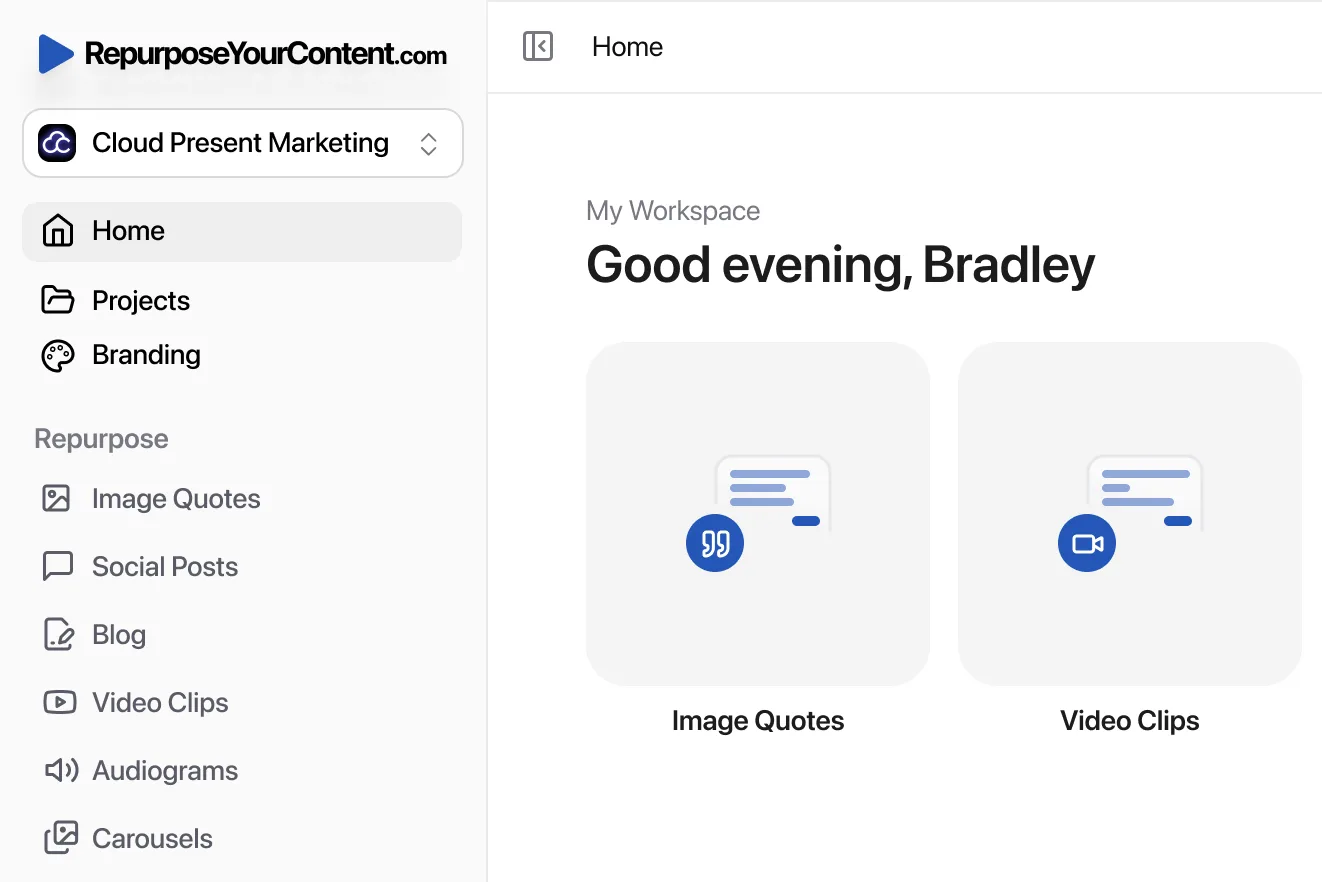
A tool such as RepurposeYourContent video clips can turn a single imported recording into outputs like:
- Video clips for LinkedIn and other social channels
- Blog posts based on the strongest discussion threads
- Social posts pulled from timestamps, quotes, and takeaways
- Audiograms for audio-led snippets
- Image quotes built from concise speaker moments
- Newsletters or email sequences based on the main insights
- LinkedIn carousels built from steps, frameworks, or examples
- Timestamps that make review and publishing faster
The useful part isn’t just format variety. It’s quantity control. Teams can decide how many clips, posts, or written assets they want from one recording instead of accepting one generic output.
A practical workflow example
Here’s a simple production run for a customer interview recorded in Google Meet.
- Import the MP4
- Check speaker labels and clean obvious transcript errors
- Select output types
- Set quantity for each format
- Apply brand kit
- Generate assets
- Review for nuance, compliance, and phrasing
- Download and schedule
This works well when the recording has one clear topic. It works less well when the call jumps between unrelated subjects. In those cases, split the session into themes before generating final content.
A strong workflow also keeps each output native to the platform where it will be published. A carousel shouldn’t read like a transcript. A clip shouldn’t keep long setup chatter. An email shouldn’t sound like a webinar intro.
What the data says about output
A 2024 UK Content Marketing Institute study found that firms importing Meet files into tools like these achieved 3.2x more content output and 52% higher engagement on LinkedIn, according to the cited study reference.
That result makes sense operationally. One recorded conversation already contains the arguments, phrasing, and examples. Repurposing restructures them into formats buyers will consume.
For teams building a broader operating model, this guide on how to scale repurposed content adds a useful layer around batching and workflow discipline.
Review the first draft fast, not endlessly. Tighten facts, trim filler, keep the original voice, then publish.
Publishing Your Repurposed Content Across Channels
Creating assets is only half the job. A pile of unpublished clips and drafts is still wasted effort.
The easiest fix is to assign each output to a channel before generation starts. That forces a cleaner content mix and stops the team from overproducing one format nobody schedules.

A simple weekly schedule from one recording
A single Google Meet webinar or interview can fill a practical week of distribution.
Monday
Publish the long-form blog post. Build it around the strongest question or argument from the recording.
Tuesday
Post one native video clip on LinkedIn. Pair it with a short text post built from the same timestamp.
Wednesday
Publish a LinkedIn carousel that breaks the discussion into steps, mistakes, or key lessons.
Thursday
Send an email to subscribers with the main insight, one quote, and a link to the full article.
Friday
Post an audiogram or image quote that captures one sharp line from the call.
This kind of sequencing keeps one source conversation active across several touchpoints without repeating the same asset.
Match format to channel
Each channel has its own constraints. The workflow should respect that.
- LinkedIn prefers concise, insight-led clips and carousels.
- Email needs a clear angle and one next step.
- Blog content should carry internal links to relevant product or integration pages.
- Audiograms work when the spoken moment is strong even without the full video context.
Teams that need more editorial discipline should review these content distribution strategies before scheduling at scale.
A broader tactical checklist also helps. These 10 actionable content repurposing tips are useful when a team wants sharper packaging and stronger reuse decisions.
Don’t publish every asset at once
That’s the fastest way to burn out one recording.
A better approach is to spread outputs by buyer intent:
| Asset type | Best use |
|---|---|
| Blog post | Search and education |
| Video clip | Social reach and engagement |
| Carousel | Mid-funnel explanation |
| Nurture and follow-up | |
| Image quote | Lightweight visibility |
That pacing gives the recording a longer shelf life and makes each asset do a distinct job.
Troubleshooting Common Google Meet Import Issues
When a Google Meet workflow breaks, the problem is usually mundane. Wrong permissions. Missing transcript. Weak audio. Confusion about which Drive owns the file.
That’s good news. Mundane problems are fixable.
The transcript isn’t there
This is more common than teams expect. A frequent issue is blocked transcripts. A 2025 Google UK Admin Survey found that 31% of Workspace admins disable this feature by default, and the fix is to turn it on in Admin Console > Meet > Transcripts > On, according to this setup reference.
If the transcript is missing, use the video anyway. But expect more cleanup in the review step.
Missing transcript doesn’t kill the workflow. It just makes every written asset slower.
The recording can’t be found
Check the organiser’s Drive first. Then check whether the meeting had recording permission enabled at all. If neither solves it, look at retention and sharing policies inside the Workspace setup.
A lot of “missing file” issues are really ownership issues.
The audio is poor
AI can help with structure. It can’t invent clean source audio.
For future calls, ask speakers to use a proper mic, close extra tabs, and avoid speaking over each other. For the current recording, focus on shorter clips, cleaner quotes, and written outputs that survive minor transcription noise.
Multi-participant calls are messy
Panel discussions and customer roundtables often create overlap. That makes clips harder to cut and quotes harder to assign.
In those cases:
- Choose shorter excerpts with one clear speaker
- Review speaker labels manually before publishing
- Turn crowded moments into written posts instead of forcing video clips
- Use timestamps to isolate cleaner segments
Permissions block download or sharing
This usually comes from restricted Drive access or the wrong sharing level. Fix the source file first. Don’t try to patch around it with duplicate downloads passed around by email.
The smoothest workflow is simple. The organiser records the session, the team retrieves the file from the correct Drive location, imports it once, generates the asset set, and publishes on schedule.
If your team already records webinars, interviews, or sales conversations in Google Meet, start turning those files into publishable assets instead of leaving them in Drive. Try RepurposeYourContent to turn one recording into clips, blog posts, social content, emails, carousels, and more in one workflow.
Tags: