ON24 Recording Download and Repurposing Guide: Master ON24
Don't let webinars sit unused. This ON24 recording download and repurposing guide shows how to export video & create weeks of marketing content.

Your ON24 webinar ended weeks ago. The replay exists. The engagement data looks strong. But the recording still isn't feeding your content pipeline.
That's the ON24 problem for enterprise teams. The platform protects assets well, but that same control often slows down the people who need to turn recordings into usable content. A webinar becomes an archive item instead of a working asset.
This ON24 recording download and repurposing guide is built for that exact situation. It covers the actual click path to get recordings out, the common blockers, the file handling issues that waste time, and the fastest route from ON24 recording to published content.
The ON24 Content Vault Problem
A common post-webinar failure looks like this. The event ended. The replay exists. Stakeholders want clips, a recap post, sales follow-up assets, and a transcript. Then the team hits ON24's access controls and the recording stays parked inside the platform for days.
That stall is not unusual. ON24 is built to protect event assets, control permissions, and keep completed webinars organized. Those are useful enterprise features. They also create friction for content teams that need the raw file now, not after three approval messages and a handoff between webinar ops and an admin.
The file usually exists. Access is the problem.
Why recordings get stuck
In practice, recordings get stranded for a few predictable reasons:
- Download rights sit with a small group. Event owners or admins often have the permission, while content marketing, social, or agencies do not.
- The platform is optimized for hosting and replay. It is less efficient as a handoff system for editing, transcription, clipping, and distribution.
- Post-event work happens in other tools. Video editors, writers, demand gen, and sales enablement teams rarely work inside ON24, so every manual export becomes a dependency.
- Timing matters more than teams admit. If nobody grabs the file during the first post-event review cycle, the webinar often slips behind the next launch, campaign, or live event.
I have seen this pattern repeatedly. Teams assume the hard part was delivering the webinar. The main bottleneck starts after the audience leaves, when someone needs to turn a hosted replay into usable source material.
That is also why generic advice about ripping embedded players is the wrong starting point for owned webinar assets. Use official access paths first, and treat third-party methods carefully. MEDIAL's advice on embedded video downloads is a useful reference on the legal and technical limits.
The enterprise trade-off
ON24 makes sense if your organization cares about governance, brand control, and event data. The trade-off is that content extraction is not the default workflow. The platform stores recordings well. It does not automatically turn them into an operating content pipeline.
That gap matters. A webinar replay sitting inside ON24 has limited value compared with the same recording turned into short clips, a transcript, a customer email, a blog post, and sales follow-up material. Teams that treat ON24 as the final destination usually underuse the asset. Teams that treat it as the source system get more output from every event.
What works and what breaks
The split is usually simple:
| Approach | What happens |
|---|---|
| Keep the replay inside ON24 | Fine for on-platform viewing. Weak for editorial reuse, distribution, and speed. |
| Export and route the file into a repeatable post-event workflow | More process upfront. Better output across content, email, social, and sales. |
The second approach is the one that holds up under real volume. If webinars are part of your content engine, ON24 cannot be the last stop. The recording needs to move into a system built for downstream production, which is why an ON24 integration for webinar repurposing workflows matters in the first place.
How to Manually Download Your ON24 Recording
You log into ON24 after a webinar wraps, you know the recording exists, and the download option still feels harder to find than it should. That friction is normal with ON24. The file is usually there, but getting it out depends on knowing the exact path and having the right permissions.

The exact click path
The standard route is through the event record itself. In ON24, go to Event Dashboard, open Completed Events, choose the webinar, then find the Media area and click Download. If your team stores assets centrally, you may also find the same file in Media Manager, where the download action sits under the three-dot menu.
Use this sequence:
- Go to Event Dashboard.
- Open Completed Events.
- Select the webinar recording you need.
- Find the Media section.
- Click Download.
- Save the file locally with a naming convention your team can reuse.
That last step matters more than teams expect. A file named final-webinar-v2.mp4 creates cleanup work later. A filename tied to campaign, date, and session title saves time for content, paid, sales enablement, and anyone else who touches the asset.
When the button is missing or greyed out
In practice, this is usually a permissions problem.
Start with the basics:
- User role: You can have access to the webinar page and still lack media export rights.
- Event ownership: The webinar may belong to another team, region, or admin group.
- Processing time: Right after a live session, the recording may still be processing.
The fastest fix is to ask the event owner or ON24 admin to confirm who can export the recording. Do that before testing browsers, clearing cache, or trying screen-capture workarounds. If ON24 shows the asset but blocks the download, the issue is almost always access control, not the file itself.
File handling and safe download practice
Once you have the MP4, treat it like a source asset. Keep the original untouched, make a working copy for edits, and store both in a location your team already uses for production. That sounds basic, but it's often the point at which webinar files get lost, overwritten, or detached from campaign context.
Some teams also deal with webinars surfaced through embedded players or secondary front ends. In those cases, MEDIAL's advice on embedded video downloads is a useful reference for handling access legally and safely.
Text usually comes next. If your workflow includes articles, email follow-up, clips with captions, or quote extraction, start with a transcript. This guide on how to transcribe video automatically is a practical next step once the recording is out of ON24.
The Manual Repurposing Grind and Why It Fails
Downloading the file feels like progress. It is. It just doesn't solve the main problem.
The difficulty starts after the MP4 lands on someone's desktop. That's when the webinar leaves one system and enters a chain of loosely connected tasks, owners, folders, comments, and review cycles.

What the manual workflow actually looks like
A typical post-download flow goes something like this:
- Ops uploads the file: Usually to Drive, Dropbox, SharePoint, or another shared folder.
- An editor scans the recording: They scrub through the session, find usable moments, and cut clips by hand.
- A writer builds the article: That usually means watching the video, reading a transcript, and turning spoken material into usable copy.
- Social pulls fragments: Someone extracts quotes, captions, hooks, and timestamps.
- Stakeholders review everything: Brand, product, legal, or speakers often want another pass.
None of those tasks are unreasonable on their own. The failure comes from stacking all of them onto one webinar, usually with no defined owner across the whole chain.
Where teams lose momentum
Manual repurposing breaks in the same places every time.
| Failure point | What goes wrong |
|---|---|
| No single owner | Everyone assumes someone else is clipping, writing, or posting |
| Transcript delay | Writing stalls because nobody has searchable text |
| Clip selection by hand | Editors spend too long finding moments worth publishing |
| Approval loops | Each asset gets reviewed separately instead of as one package |
| Platform formatting | Teams rebuild the same content for LinkedIn, email, and blog channels |
That's why recordings pile up. Not because they lack value. Because every asset type starts as a fresh mini-project.
A webinar doesn't become content by default. Someone has to turn a long recording into discrete assets, package them, and push them into channels.
Manual effort rewards the wrong behaviour
The hidden issue is strategic. Manual workflows teach teams to be conservative.
If every webinar creates more admin than output, marketers stop asking for more formats. They settle for the replay page, one short recap email, and maybe a single clip if someone has spare time.
That's also why automating webinar repurposing matters operationally, not just creatively. It changes the default from “maybe we'll get to it” to “every webinar produces a standard content set”.
The manual path can work for one flagship event. It doesn't hold up across a quarterly or monthly webinar programme, especially when teams also need newsletters, social posts, audiograms, image quotes, blog drafts, timestamps, and internal sales follow-up.
The Automated ON24 Recording Download and Repurposing Guide
The cleanest workflow is simple. Download the ON24 recording once. Move it straight into a repurposing system. Generate the content package in one pass.
That removes the handoff chain. It also gives content, demand gen, and social a shared starting point instead of separate requests.

The practical workflow
Use this sequence after the ON24 download is complete:
- Export the finished recording from ON24. Keep the original file intact.
- Upload the file into your repurposing workflow.
- Choose output formats. Typical options include video clips, blog posts, social posts, audiograms, image quotes, newsletters, LinkedIn carousels, and timestamps.
- Generate the asset set.
- Review and publish by channel.
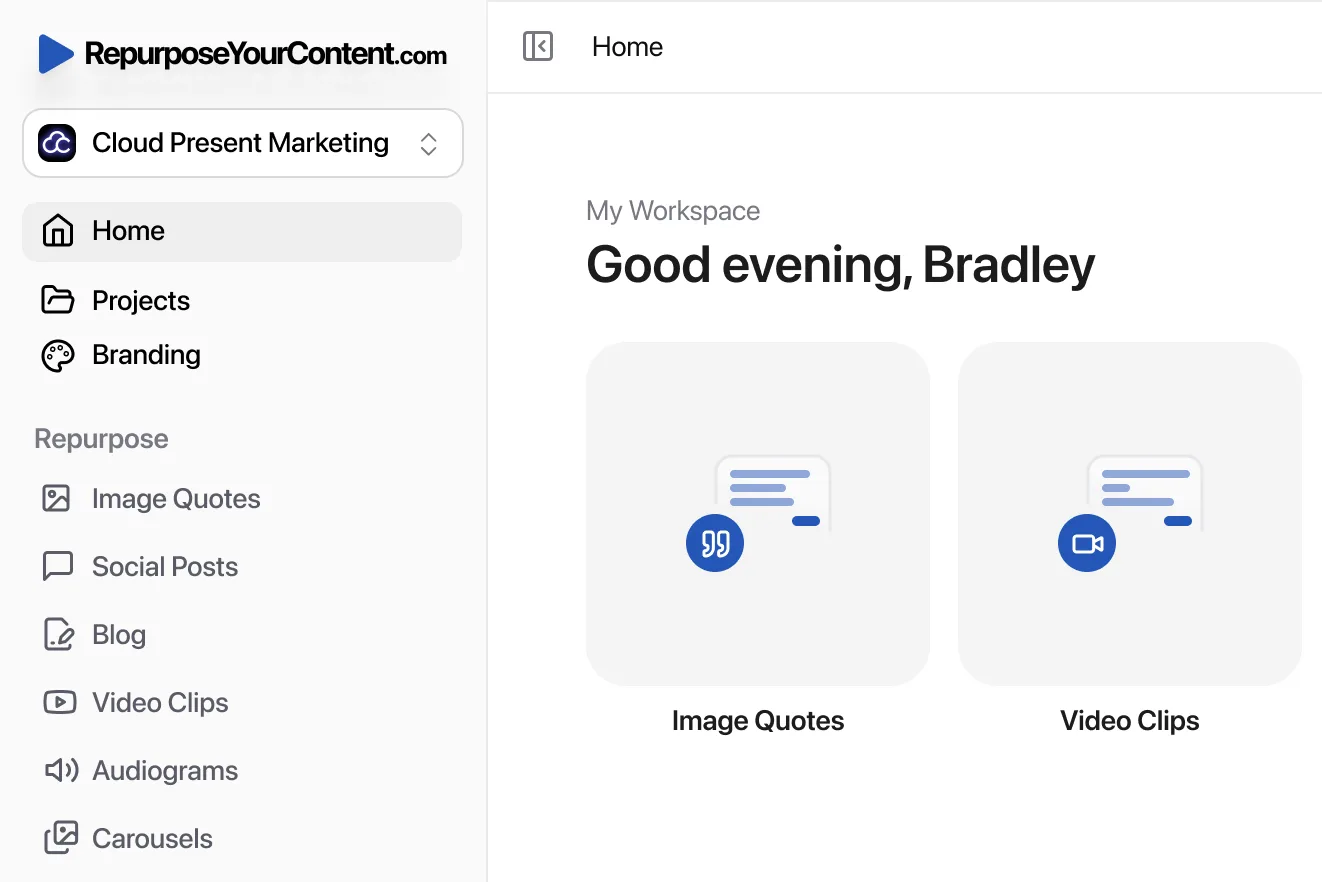
A tool such as RepurposeYourContent's ON24 video clips workflow is effective for this purpose. It takes the downloaded ON24 recording and turns it into multiple publishable assets from the same source file.
A real workflow example
Here's a practical enterprise use case.
Step 1
The events team downloads the completed ON24 recording and saves it to the campaign folder.
Step 2
The content manager uploads the file and selects the required outputs for that campaign: short clips for LinkedIn, a blog draft for the resource centre, social posts for launch week, an audiogram for audio-first channels, branded image quotes for sales, a newsletter segment, and timestamps for internal review.
Step 3
The team reviews the generated outputs, checks compliance language, and routes them into publishing.
That's the difference. The webinar stops being a replay file and starts acting like a source document for a campaign.
What this approach fixes
- It reduces handoffs: One source file feeds multiple channels.
- It standardises output: Each webinar can follow the same post-event playbook.
- It helps backlog recovery: Older ON24 recordings can be processed in batches.
- It gives social and content teams the same source material: No duplicate work.
For teams thinking beyond webinars, Podmuse on maximising podcast potential is a useful parallel. The same core idea applies. One long-form recording works harder when the system is built for reuse, not storage.
How RepurposeYourContent Processes Your ON24 Archive
An ON24 recording sitting in a webinar console is finished from the platform's point of view. For a marketing team, it is usually still raw material. The gap is getting that file out of ON24, through review, and into formats other teams can publish.
RepurposeYourContent handles that post-download step. It takes the exported recording and turns it into a working set of assets built for distribution, not storage.

What happens after the ON24 file is exported
The practical value is in converting one long recording into channel-specific outputs without sending the same source file through five different people.
A single ON24 session can produce:
- Video clips: Short segments for LinkedIn, YouTube, paid social, and email follow-up
- Written assets: Blog drafts, FAQs, recap copy, newsletter sections, and sales summaries
- Visual content: Quote graphics, carousels, and presentation-style slides
- Audio edits: Podcast-style excerpts and audiograms
- Review aids: Timestamps, topic markers, and sections that make approvals faster
That matters because different teams use the same webinar in different ways. Demand gen needs follow-up content. Social needs excerpts that can stand alone. Sales wants concise proof points from the speakers, not a 58-minute replay link.
Why this works well for ON24 teams
ON24 is strong at running polished enterprise webinars. It is less helpful once the event is over and the recording needs to feed the rest of the content operation.
That is the friction point teams keep running into. The webinar exists. The ideas are approved. The speakers are on record. But the recording still has to be cut, rewritten, checked, and packaged before it becomes useful outside the event archive.
RepurposeYourContent closes that gap with a defined post-event workflow. Instead of treating the replay as the final output, it treats the recording as the source file for multiple approved derivatives.
Archived webinars rarely have a content problem. They have a processing problem.
The outputs that matter most
The useful deliverables change by function, but the source file stays the same.
| Team | Most useful asset types |
|---|---|
| Demand gen | Clips, email copy, landing page copy, follow-up snippets |
| Content marketing | Blog drafts, FAQs, newsletter content, timestamps |
| Social | Captions, image quotes, audiograms, carousels |
| Sales enablement | Speaker soundbites, summary clips, short written takeaways |
The operational benefit is consistency. Teams can define one repeatable asset package for every ON24 webinar instead of deciding from scratch each time.
For teams that want to set up that workflow around an existing webinar backlog, book a demo for the ON24 repurposing workflow.
A Note on Permissions and Your Next Step
Before repurposing anything, confirm that your team has the right to reuse the recording outside the original ON24 event environment. That usually means checking speaker agreements, internal brand rules, and any legal review standards tied to public distribution.
This is not a formality. A clean content workflow starts with clear usage rights. If external guests appeared in the webinar, confirm that clips, quotes, and rewritten written assets are covered.
The permission check worth doing first
Run this short checklist:
- Speaker clearance: Confirm guest speakers agreed to replay and derivative content use.
- Internal policy: Check whether legal or compliance needs to review public-facing edits.
- Asset ownership: Make sure the team downloading the file can also distribute the outputs.
- Brand review route: Decide who signs off once, rather than reviewing every asset ad hoc.
Once that's sorted, the path is straightforward. Export the ON24 file, move it into a repurposing workflow, review the assets, and publish them across the channels that already need content.
Backlogged webinar recordings rarely need more strategy. They need a repeatable extraction and publishing process.
If your team has a stack of completed ON24 sessions sitting idle, start with one. Use it to build the post-event workflow, then apply that process to the backlog. For teams that want a guided setup, the next step is to book a demo with RepurposeYourContent.
If ON24 recordings keep stalling after the event ends, try RepurposeYourContent and turn one downloaded recording into publishable clips, posts, articles, and more.
Tags: