How to Save a TikTok Without Posting It
Learn how to save a TikTok without posting it on iPhone and Android. Covers Drafts, device export, Only Me, and proven workarounds.
A creator records the cleanest take of the week, nails the opening hook, then stops before publishing. The video still needs b-roll, captions, or a better thumbnail. How to save a TikTok without posting it depends on one decision: keep it inside TikTok as a private draft, or export a finished copy to the phone.
TikTok's native Drafts workflow is the safest route for unpublished work. Device export is different. On iPhone, it usually requires an Only me post before the file reaches Photos. Android may show a direct Save button from the draft screen. The distinction affects privacy, quality, storage, and whether the clip can be used outside TikTok.
Two Ways to Keep a TikTok Without Posting
A creator with a strong take has two practical choices.
The first is TikTok Drafts. The video stays inside the account and remains private until the creator returns and posts it. TikTok's native workflow is simple: record or upload the clip, edit it, then choose Drafts instead of Post. The draft remains available for later editing and publishing within the app, as described in TikTok's guide to saving a video without posting.
The second is device export. This creates a finished video file in the phone's camera roll or gallery. That copy can move into another editor, cloud folder, archive, or social channel. It's the right choice when the creator needs the actual MP4, not just an editable TikTok project.
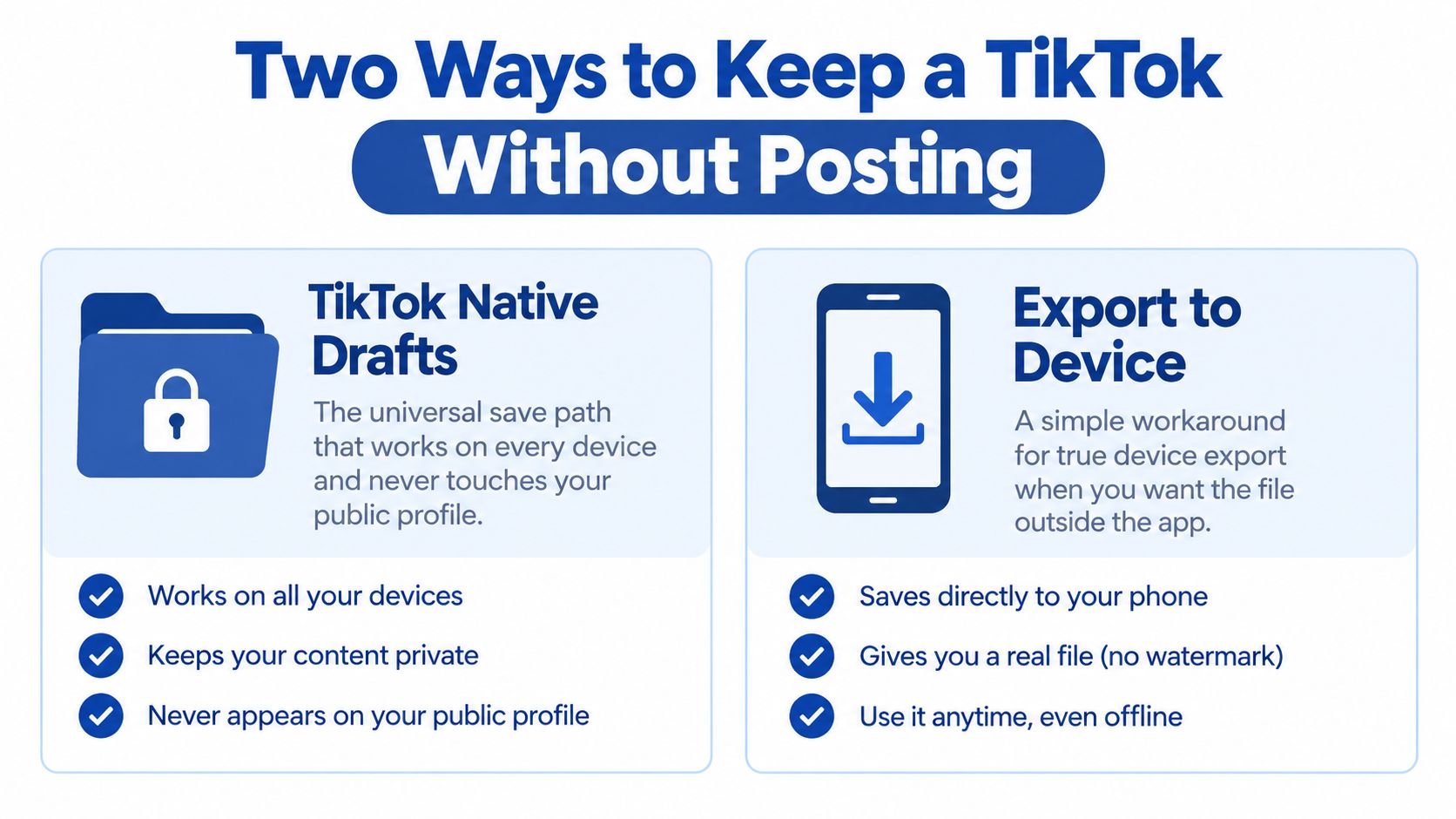
Practical rule: Drafts protect privacy. Device export protects portability.
The hidden catch is that iPhone export often routes through a private Only me post. The video isn't visible to followers or the public feed, but TikTok still processes it as a post before saving the file. That matters for creators who want a local archive without sending content through TikTok again.
A useful workflow for long-form creators follows the same logic. One podcast, interview, keynote, or sales call can produce short clips, captions, and written posts without forcing every asset to publish immediately. Guidance on repurposing video content for social media can help structure that wider workflow. Creators exploring visual audio formats can also review Reels music video generators for adjacent production ideas.
Saving a TikTok Draft in the App
TikTok Drafts are the universal in-app save path. They work on iPhone and Android because the clip stays within TikTok rather than moving into the device gallery.
After recording or uploading the video, edit it as usual. Add text, sounds, effects, captions, or voiceover. When the editing screen is complete, tap Next.
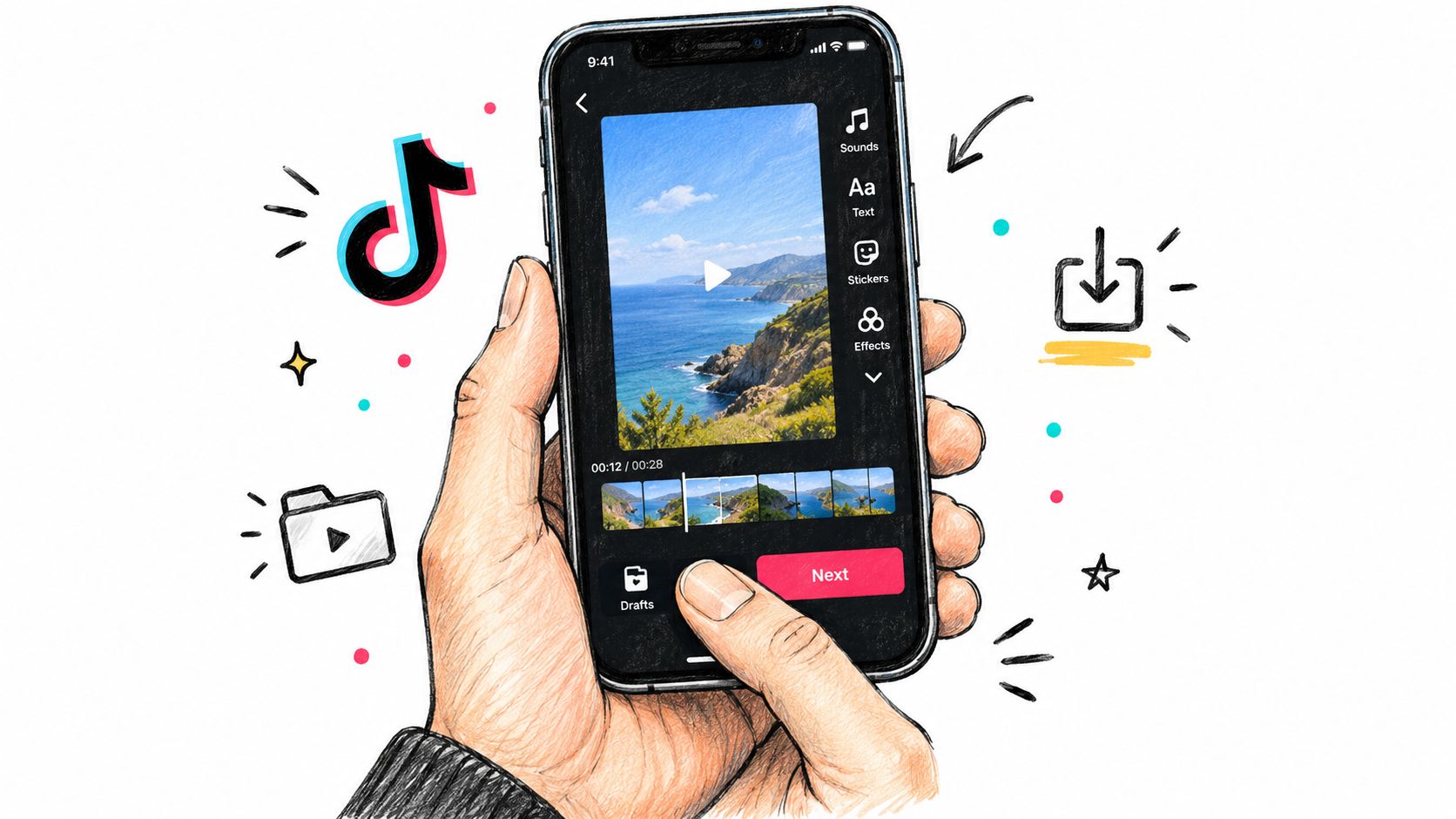
On the posting screen, look for the audience or posting control. Depending on the app version, TikTok may show a Post toggle, a visibility dropdown, or a direct Drafts option.
- Tap the control that currently indicates Post or public visibility.
- Select Drafts, or choose the Drafts option before publishing.
- Return to the profile page.
- Open the Drafts tab and confirm that the thumbnail appears with a Drafts label.
The clip hasn't been uploaded as a public video. It remains private to the account holder and can be reopened from the profile. From there, the creator can re-edit the video or publish it later.
Drafts are useful when the footage still needs a decision. A founder might record three versions of a product explanation, save each one, then select the clearest delivery later. A podcaster might keep a take private while checking captions or replacing a weak opening.
The limitation is storage. Drafts live with the TikTok app's local data, so clearing the app's data or uninstalling TikTok can remove them. They aren't a reliable archive for original recordings. A creator who needs long-term access should export a separate copy or keep the source file in a dedicated storage location.
Exporting a TikTok to Your iPhone Without Posting
iPhone users usually need a workaround for a true camera-roll copy. TikTok doesn't consistently provide a direct Save to device button from every draft screen, so the reliable path uses private visibility.
Open the draft and make any final edits. Tap Next to reach the posting screen. Set the audience or privacy selector to Only me. If available, turn on Save to device before posting. The exact controls can vary by app version.
The sequence is:
- Open the draft.
- Tap Next.
- Set visibility to Only me.
- Enable Save to device, if the option appears.
- Post the video privately.
- Open the new private video.
- Tap Share.
- Tap Save video.
The result is a video file in the Photos app. It may include TikTok branding, depending on the export path and app behavior. The private post isn't presented publicly, but it still passes through TikTok's servers.
Privacy note: “Only me” hides the post from other viewers. It doesn't mean the file never reaches TikTok.
This route uses mobile data or Wi-Fi and consumes account and device storage. Deleting the private TikTok post later won't delete the saved copy from Photos. That separation helps when the local file becomes the master for captions, editing, or cross-posting.
Creators who need readable text should inspect captions before exporting. A practical guide to adding captions to video clips covers the editing issue separately, but the key decision remains simple. If the file must leave TikTok, use the private export route. If it only needs to wait, keep the draft.
Android vs iPhone Save Differences
The platform split is mechanical.
On many Android versions, the draft screen includes a direct Save button. Tap it, and TikTok exports the video to the device gallery without requiring a public or private post. The exact folder depends on the phone manufacturer and file-management setup. Common locations include a TikTok folder, DCIM, or Movies.
On iPhone, the draft screen often lacks that direct export control. The creator typically uses Only me, then Save to device or Save video. The finished file appears in Photos and may sync through the user's iCloud settings.
| Step | Android | iPhone |
|---|---|---|
| Open the draft | Tap the draft thumbnail from the profile | Tap the draft thumbnail from the profile |
| Find export control | Look for Save on the draft screen | Move to Next, then look for Save to device |
| Privacy setting | Direct export may avoid posting | Set visibility to Only me before posting |
| Final location | Gallery, TikTok folder, DCIM, or Movies | Photos app |
| Main trade-off | Button availability varies by version | Export commonly requires a private post |
The file's aspect ratio still matters after export. A vertical clip may need reframing before it moves to another channel, especially when adapting it for feed posts or long-form video. The aspect ratio glossary gives the relevant terminology for that handoff.
A draft can generally be accessed across devices when the creator uses the same TikTok account, but export quality follows the original recording and processing path. Moving the draft from Android to iPhone doesn't automatically create a higher-quality master.
Best Workarounds When Save to Device Is Missing
When the Save button disappears, three fallback paths appear most often. They don't provide the same result.
First choice, the Only me route
The private-post workflow ranks highest for a creator who needs a usable local file. It preserves the rendered video better than screen recording and avoids recording visible playback controls. The process takes a short sequence of privacy, save, and deletion steps, but it remains tied to TikTok's current interface.
This is the practical choice for cross-posting, editing, or archiving a finished take.
Second choice, screen recording
Screen recording is easy to start and works when the app offers no export option. Play the draft full-screen, begin recording before playback, then trim the result in Photos or another editor.
The trade-offs are clear:
- Quality: The phone records the playback rather than copying the source file.
- Clutter: Status bars, controls, or cropping artifacts can appear.
- Audio: The recording keeps the playback mix, but re-encoding can reduce clarity.
- Watermark: TikTok branding may remain visible.
Use it for a quick personal backup. Don't treat it as a clean master for client work or repeated cross-posting.
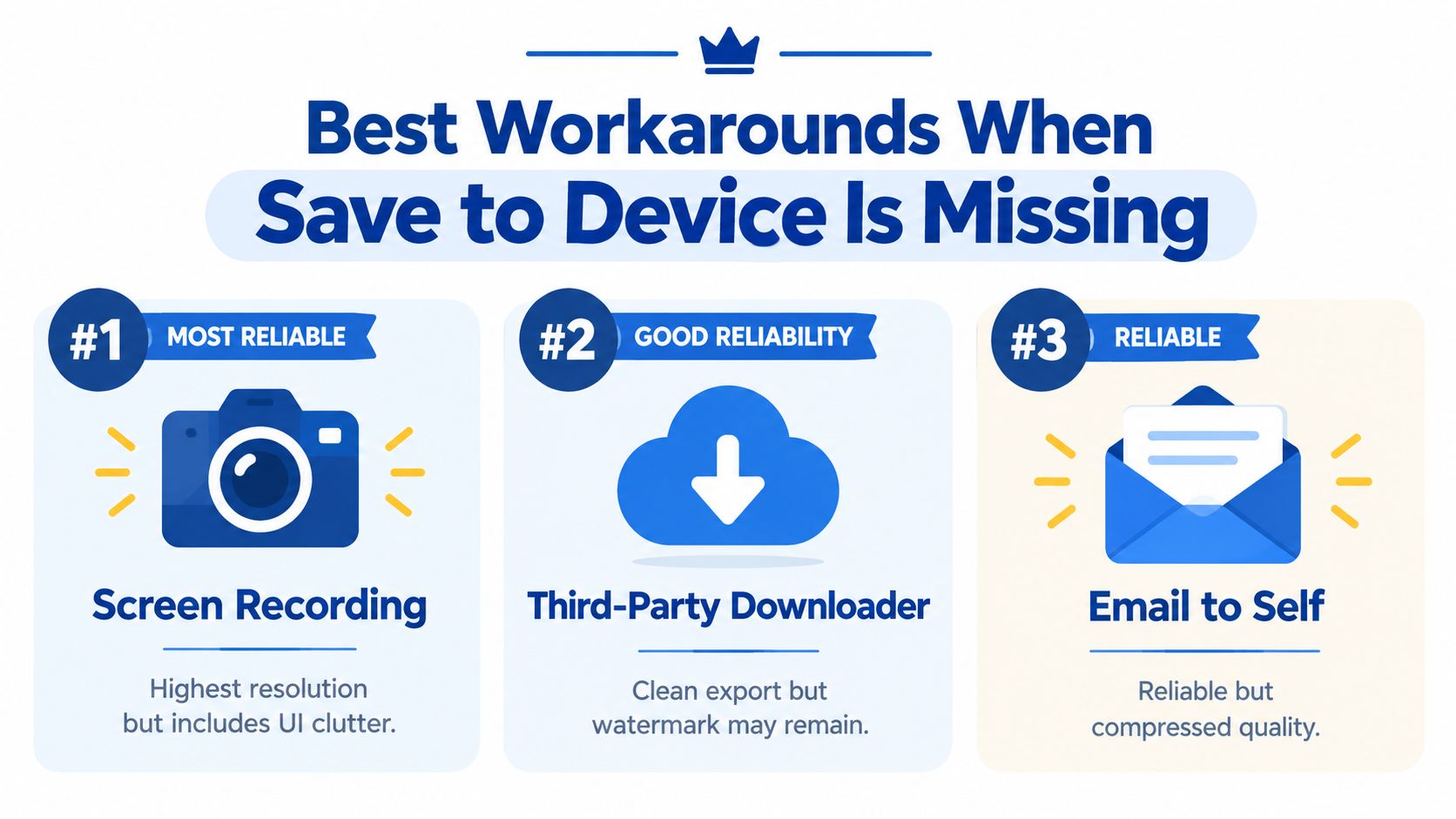
Third choice, third-party downloaders
Download sites can produce a clean-looking file, but reliability changes as TikTok changes its systems. Some services leave watermarks, while others create privacy and malware risks. They're also a poor choice for videos the user didn't create.
For a systematic workflow, creators can compare these options with repurposing long-form video into short clips. The ranking remains straightforward: use Only me for quality, screen recording for convenience, and third-party services only with careful ownership and security checks.
Privacy and Copyright Rules You Need to Know
Saving an original draft is the low-risk scenario. The creator made the footage and controls the recording, but music rights still matter when that file moves to another channel. A sound cleared inside TikTok may not be cleared for LinkedIn, YouTube Shorts, Instagram Reels, or paid promotion.
Other people's videos create a different problem. A downloader may technically produce a file, but that doesn't grant permission to reuse the content. The original creator may control the video, while a separate rights holder may control the music, footage, image, or spoken material.
The private-post workaround doesn't erase that issue. Only me changes visibility, not ownership. The file still passes through TikTok, and the creator remains responsible for how it was obtained and where it is reused.
Ownership test: If the creator didn't record the footage, permission should come before downloading, editing, or reposting it.
The same rule applies to client recordings. A sales call may contain customer information. A course recording may include licensed slides or guest material. A keynote may include audience members who haven't agreed to public distribution. Private storage doesn't replace consent, clearance, or internal review.
Manual saving also carries a labor cost. Each clip requires opening the right account, locating the draft, choosing a privacy path, exporting, checking the result, and filing the copy. For creators managing a regular content schedule, that repeated work can take attention away from recording, selling, and publishing.
The sensible boundary is narrow. Save original content, verify music rights, protect confidential material, and get permission before handling someone else's video.
Skip the DIY and Hand Off the Recording
Drafts solve storage inside TikTok. Private posts solve iPhone export. Screen recordings solve emergencies. None solves the broader production problem when a creator has a long-form recording and needs many finished assets.
A better workflow starts with one source file. The recording can be a podcast, interview, keynote, sales call, livestream, course lesson, or meeting. Raw audio is acceptable, and casual framing is fine. The creator sends the recording, gives the team brand guidance, and reviews the finished package.
A typical batch can include 20 to 30 ready-to-publish assets in 72 hours:
- Video clips: Vertical excerpts selected for a clear hook.
- LinkedIn posts: Written in the speaker's brand voice.
- Quote graphics: Designed around strong, usable statements.
- Carousels: Structured from one idea or argument.
- Audiograms: Built for audio-led promotion.
- A blog post: Developed from the recording's main discussion.
The client's time is about 15 minutes for the handoff and review. The service includes unlimited revisions, so the creator isn't forced to accept the first cut. This approach avoids the TikTok-specific compromises: drafts stay inside the app, Only me still routes through a private post, and screen recording can add compression or visible interface clutter.
RepurposeYourContent is one done-for-you option that turns a client recording into finished social, video, graphic, and written assets. The relevant workflow is described in outsourcing content repurposing.
The practical comparison: One recording becomes a content batch. The creator spends roughly 15 minutes, while the production team handles selection, editing, captions, design, and revisions.
For creators who publish regularly, the service lists a 72-hour turnaround guarantee, or the client doesn't pay. Pricing starts at $14 per finished asset, and one 45-minute recording can become 30 assets. Those figures apply to the described done-for-you service, not TikTok's native saving features.
The next step is simple. Book a call or request a sample batch using one podcast, interview, keynote, or other recording, then judge the clips, captions, graphics, and written content before committing to a recurring workflow.
TikTok's Drafts folder is right for private work that may return to TikTok. Device export is right for a file that needs to leave the app. Choose the track before recording more content, and book a call or request a sample if manual saving is slowing down the publishing schedule.
Tags: